Shopify Cart Progress Bar for Tiered Discounts: Show Shoppers What the Next Rung Unlocks

Pixoo
Multi-currency discounts for Shopify
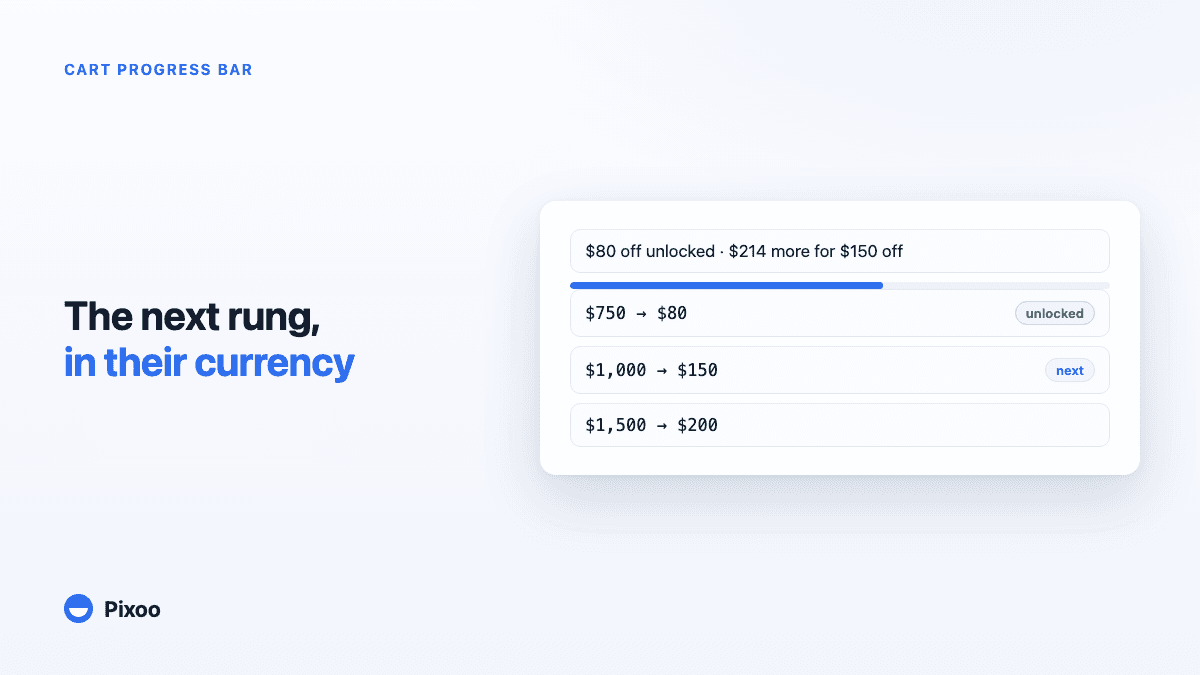
Shopify Cart Progress Bar for Tiered Discounts: Show Shoppers What the Next Rung Unlocks
Key takeaways
- An automatic spend threshold discount in Shopify only shows up once it applies, at checkout. Before that, nothing on the cart page tells the shopper they are $40 away from a reward, so the "spend a bit more" effect you built the discount for never happens.
- A cart progress bar puts that gap in front of the shopper on the cart page, in the cart drawer and on product pages, and updates as the cart changes.
- Pixoo's bar is built for tiered discounts (up to five rungs) and for stores selling in several currencies: each currency keeps its own thresholds, and no amount is ever converted on the fly.
- The bar never lies. It only announces a reward once Shopify's own cart confirms the discount line, and a discount it cannot predict exactly is left out with a reason you can read in the admin.
In this guide:
- The Discount Nobody Sees Coming
- Why Shopify Shows Nothing Before the Threshold
- What the Progress Bar Does
- Tiered Discounts, in Every Currency
- The Bar That Refuses to Lie
- Setting It Up in Pixoo
- FAQ
While testing spend tiers on our own store, we built the classic ladder: $10 off from $100, $25 off from $200, $40 off from $300. Then we put $95 worth of products in the cart and looked at the page the way a shopper would. Subtotal, shipping note, checkout button. Not a word about the $10 sitting five dollars away. We had built a discount whose entire purpose was to nudge people over a line, and the store kept the line a secret until the checkout page, which is the one page where nobody adds anything to their cart.
The Discount Nobody Sees Coming
Threshold discounts are popular for a good reason. "Spend $100, get $10 off" is easy to explain, easy to budget, and it targets the one number most merchants care about in Q4: average order value. Tiered versions add a second and third rung so the shopper who just crossed $100 has a reason to reach $200.
The mechanism only works if the shopper knows where the line is. That is the part Shopify leaves to you. An automatic discount lives in the admin, applies when the cart qualifies, and is silent until then. Searches like shopify cart progress bar and spend x get y progress bar shopify are full of merchants who noticed the same thing after launching a threshold promotion: the discount fires for the people who would have spent that much anyway, and nobody else ever learns it existed.
The usual workaround is an announcement bar at the top of the store. It helps, but it is static. "Spend $100 and get $10 off" reads very differently from "$5.00 more to unlock $10.00 off" when the second one is sitting right above your cart and just changed because you added a pair of socks.
Why Shopify Shows Nothing Before the Threshold
This is not an oversight you can toggle off. Shopify evaluates automatic discounts server-side, at cart and checkout time, and returns the result: either a discount line is on the cart or it is not. There is no "almost" state in that answer, so there is nothing for the theme to display before the threshold is met.
Themes do show an applied discount in the cart totals once it exists. Dawn and Horizon both list it under the subtotal. That is useful confirmation, but it arrives after the decision the shopper already made. The cart page needs the other half of the information: how far away the reward is, and what the next reward is if there are several.
Getting that number right is harder than it looks, which is why the honest version of this feature took longer to build than the pretty version. The cart page does not know which lines count towards the threshold (a subscription item may not, an item already on sale may not), which currency's threshold applies to this visitor, or whether the discount is even active right now. A bar that guesses will sometimes say "unlocked" to a shopper whose checkout then shows full price. That is worse than no bar at all, and it is the reason the rest of this article spends so much time on what the bar refuses to do.
What the Progress Bar Does
Pixoo's Progress bar reads the automatic order discounts you already created, works out where the current cart stands against their thresholds, and renders a bar with a message. It updates as the cart changes, on the cart page, in the cart drawer and on product pages, without reloading anything.
It has four states, each with its own editable message:
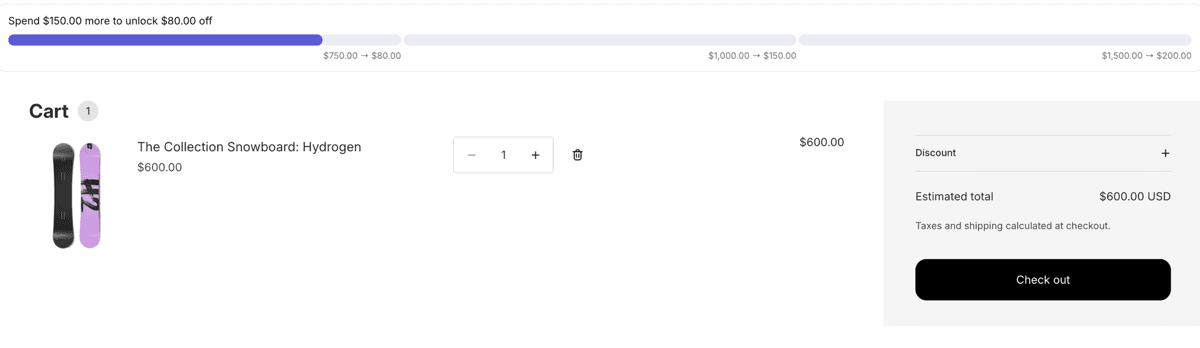
Progress. The cart is below the first rung: "Spend $40.00 more to unlock $10.00 off".
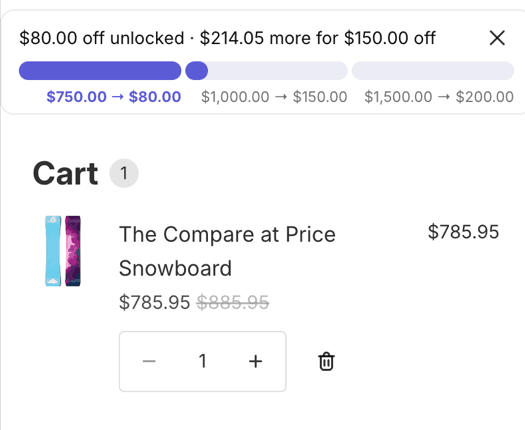
Between goals. At least one rung is reached and another exists: "$10.00 off unlocked · $90.00 more for $25.00 off". The bar itself is split into segments, one per rung, so the shopper sees both the rung they cleared and the one ahead.
All goals reached. Every rung is cleared: "$25.00 off applied to your order".
Empty cart. A teaser with no amount promised, because there is nothing to compute yet: "Get $10.00 off on orders over $100.00".
The messages exist in seven languages (English, French, German, Spanish, Italian, Portuguese and Dutch) and follow the storefront language. Each one accepts tokens like {{remaining}}, {{reward}} and {{nextReward}} so you can reword them however you like. Colours, height, corner radius and which surfaces show the bar are all set in the Pixoo admin, and the bar inherits your theme's font so it does not look bolted on.
Tiered Discounts, in Every Currency
The bar was built at the same time as Pixoo's spend tiers, and it inherits their central rule: thresholds and rewards are set per currency, and never converted. A ladder of $100, $200 and $300 in the US can be €100, €200 and €300 in the eurozone and £90, £180 and £270 in the UK, each one a round number that makes sense locally. The bar shows the rungs of the currency the visitor is actually shopping in.
This matters more for a progress bar than for the discount itself. A discount that converts a $100 threshold into €92.37 is slightly odd but survivable. A progress bar that tells a French shopper "plus que €7,63 pour débloquer €9,24" looks broken, and a shopper who does not trust the bar does not act on it. The complete guide to multi-currency discounts covers why round local amounts outperform converted ones; the bar simply carries that principle onto the cart page.
Two details follow from the "never converted" rule:
A ladder is only shown in currencies where you set it. If your tiers exist in USD and EUR and a visitor pays in CAD, the bar has nothing honest to show and stays hidden for that visitor. It will not invent a converted ladder.
A single threshold can follow your fallback currencies. For discounts with one rung and "apply to unset currencies" enabled, the bar converts that single goal using the store's live rate, and always rounds in the direction that under-promises. The real crossing is still confirmed by the cart, which brings us to the part that took the longest to get right.
The Bar That Refuses to Lie
Every "spend more, get more" bar has to decide what to do when it is not sure. Pixoo's answer is simple: if the bar cannot predict exactly what the discount will do, it does not show that discount. The doubt is resolved in favour of silence, every time.
That rule shows up in three places.
Some discounts are excluded up front. Discounts that need customer data the theme cannot see (customer tags or segments, B2B-only, guests-only), discounts with a quantity threshold instead of a spend threshold, discounts restricted to full-price items (the cart page does not expose the compare-at price reliably enough to compute the eligible subtotal), and discounts about to expire within the bar's cache window. Manual discount codes are never candidates either: the bar covers automatic order discounts only. Each excluded discount is listed on the Progress bar page in the Pixoo admin with its reason in plain English, so "why is my bar not showing this one" is answered before you write in.
What can be mirrored is mirrored exactly. Market restrictions are checked against the visitor's market. Subscription-only or one-time-only discounts count the right cart lines. A rung that sits below the discount's minimum purchase amount is clamped the way Shopify's own logic clamps it. The bar's estimate is built from the same rules the discount runs on.
"Unlocked" is only ever said after the cart says it. The bar reads the discount lines Shopify actually applied to the cart and matches them to the discount it is tracking. If the bar's own calculation says a rung was crossed but the cart does not confirm it twice in a row, the bar hides itself for the rest of that session and reports the mismatch to Pixoo. A shopper will see no bar rather than a wrong one.
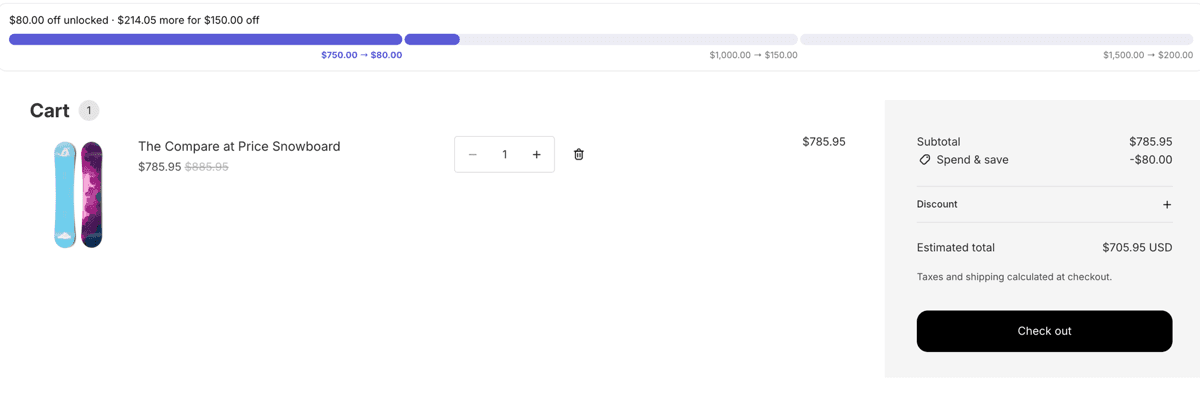
In the screenshot above, both halves are visible at once: the bar's message at the top, and the "Spend & save" line for -$80.00 in the totals that Shopify wrote, not the bar. That is the standard the feature is held to.
If your promotions also lean on a free gift at a threshold, the same honesty question comes up there, and it is worth reading how the free gift with purchase feature handles a gift that is added to the cart before the shopper qualifies.
Setting It Up in Pixoo
The bar needs two things: an automatic order discount with a spend threshold or spend tiers, and the bar switched on. Nothing is configured in the theme editor beyond a single activation.
1. Have a discount to show. In Pixoo, create or open an automatic Amount off order discount and set a minimum purchase amount, or spend tiers, per currency. Tiers accept from one to five rungs. If the discount exists already, there is nothing to change.
2. Open Progress bar in the Pixoo admin and enable it. The page shows the installation status of the bar on your theme and gives you a one-click link into the theme editor to activate the app embed. That embed covers the cart page and the cart drawer. For product pages, or for a theme where you want to place the bar by hand, there is also an app block you can drop into any section.
3. Choose what the bar follows. Automatic lets Pixoo pick the best safe discount for each currency. Pick one manually pins a single discount; if that discount ever becomes unsafe to display (it expires, or you add a customer restriction), the bar hides rather than switching to another discount you did not choose.
4. Check the diagnostic list. Every automatic order discount in the store is listed with either "safe" or the reason it is excluded. Fix the reason or accept it. This list is also where to look first if a bar does not appear.
5. Adjust texts and appearance. Messages per state and per language, colours, bar height, corner radius, and which of the three surfaces (cart page, drawer, product pages) show the bar. A live preview updates as you type. Under Advanced, you can give the bar a CSS selector for your cart or drawer if your theme is not one it detects on its own.
The bar is available on every Pixoo plan. If you are preparing threshold promotions for the holiday season, the Black Friday guide for multi-currency stores covers the discount side; the bar is what makes those thresholds visible once they are live.
A spend threshold is the cart's job. For an automatic discount that applies to every unit, with no threshold, the honest surface is the product page itself: see how to show the discounted price on Shopify product pages, which uses the same rules and the same cart check.
Frequently Asked Questions
Does Shopify have a built-in cart progress bar for discounts?
No. Shopify evaluates automatic discounts on the server and only reports the result once a discount applies, so themes have nothing to display before the threshold is met. Some themes ship a free shipping bar driven by a fixed amount typed into the theme editor, but that bar knows nothing about your actual discounts, their currencies or whether they are active. A discount-aware progress bar comes from an app.
Can a progress bar show tiered discounts like spend 100 get 10, spend 200 get 25?
Yes, and that is the case the Pixoo bar is designed around. The bar is split into one segment per rung, up to five, and the message names both the reward just unlocked and the next one to reach. Tiers are set per currency in the discount itself, so the bar shows a French visitor the euro ladder and a US visitor the dollar ladder.
Does the progress bar work with multiple currencies on Shopify Markets?
Yes. Thresholds and rewards are read in the currency the visitor is shopping in, and they are never converted from another currency. If a ladder is not defined for the visitor's currency, the bar stays hidden for that visitor instead of guessing. A single threshold discount set to apply to unset currencies is the one exception: its goal is converted with the store's rate, rounded to under-promise, and the crossing is still confirmed by the cart.
Why is my Shopify progress bar not showing?
In order of likelihood: the discount is a manual code rather than an automatic discount; the threshold is a quantity, not an amount; the discount is restricted to full-price items, or to customer tags or segments; or the app embed is not activated in the theme editor. The Progress bar page in Pixoo lists every automatic order discount with the exact reason it is excluded, and shows whether the storefront script has been seen recently.
Does it work with the cart drawer and with Dawn or Horizon?
Yes. The app embed mounts the bar on the cart page and in the cart drawer of Dawn, Horizon and the common drawer patterns, and re-mounts it when a drawer is opened late. For other themes, a CSS selector for the cart or drawer container can be set in the admin, and an app block is available for explicit placement, including on product pages.
Does the progress bar change my cart or slow down the store?
It never modifies the cart: the script is read-only, it watches cart updates and reads the cart state Shopify already exposes. The discount data it needs is served from a cached endpoint that never fails hard; if anything goes wrong upstream, the bar is simply not rendered on that page load.
Back on our test store, the cart at $95 now reads "Spend $5.00 more to unlock $10.00 off", and the socks went in. That is the whole feature: the discount you already had, finally saying out loud what it was for, in the shopper's own currency, and only once it is sure.
Recommended Articles
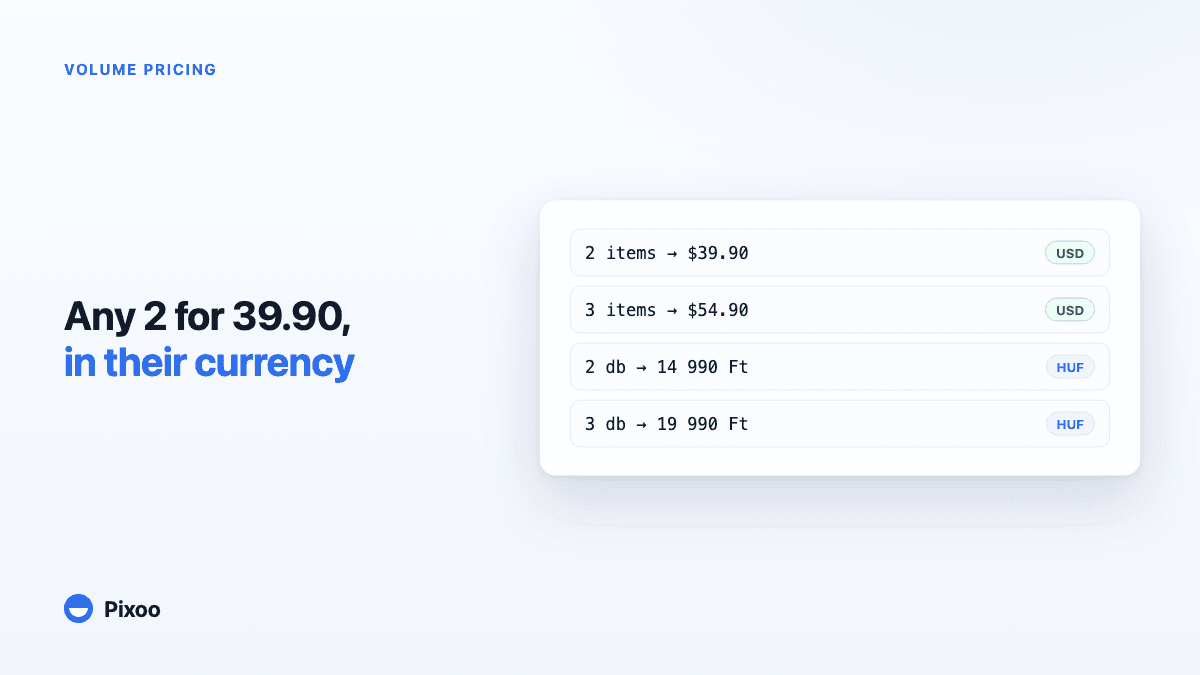
Shopify Volume Pricing in Every Currency: 2 for $39.90, 3 for $54.90, Without Converted Cents
A "2 for 30" offer only works if the price is round in every currency the shopper pays in. Here is why native Shopify discounts make that hard, and how Pixoo lets you type the price of the set per currency and works out the discount at checkout.
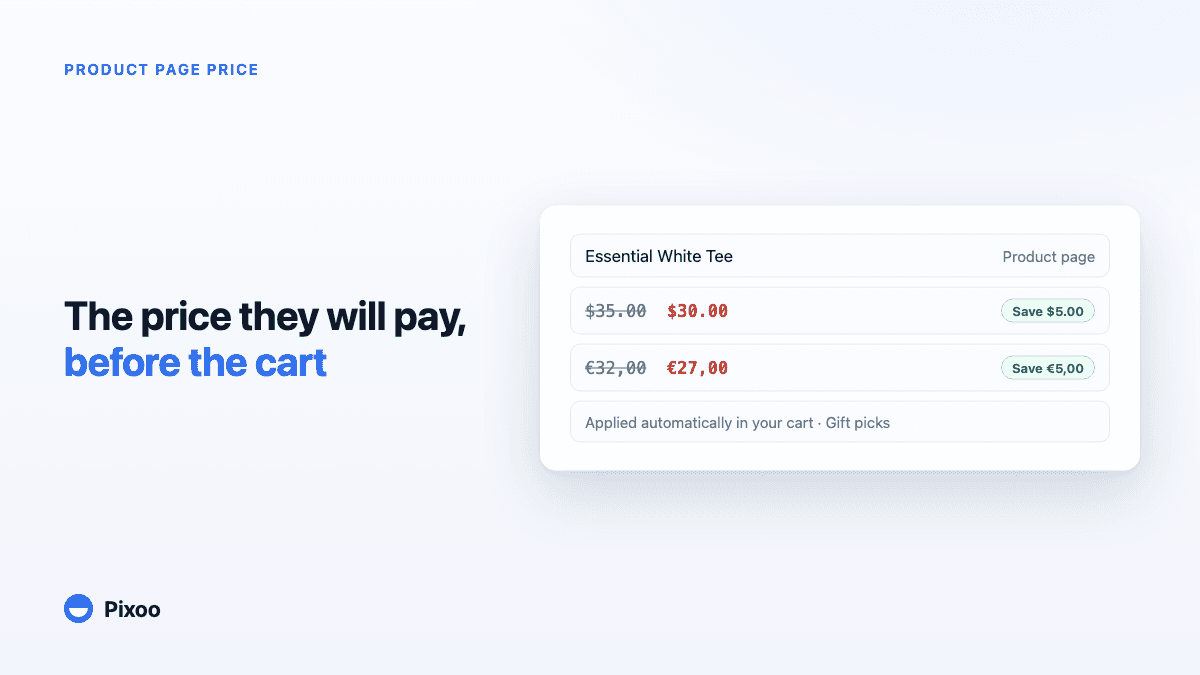
How to Show the Discounted Price on Shopify Product Pages, in Every Currency
An automatic discount on Shopify is applied in the cart, so the product page keeps showing the full price and most shoppers never learn there was a deal. Here is how to show the price they will actually pay, on the product page, in their own currency, without ever displaying a price the checkout will not honour.