How to Show the Discounted Price on Shopify Product Pages, in Every Currency

Pixoo
Multi-currency discounts for Shopify
How to Show the Discounted Price on Shopify Product Pages, in Every Currency
Key takeaways
- Shopify applies an automatic discount in the cart, so the product page shows the full price until the shopper gets there. The discount you paid for in margin is invisible at the moment of decision.
- Showing a discounted price on the product page is a promise. It is only worth making if the checkout will give exactly that price, for one unit, in the shopper's currency.
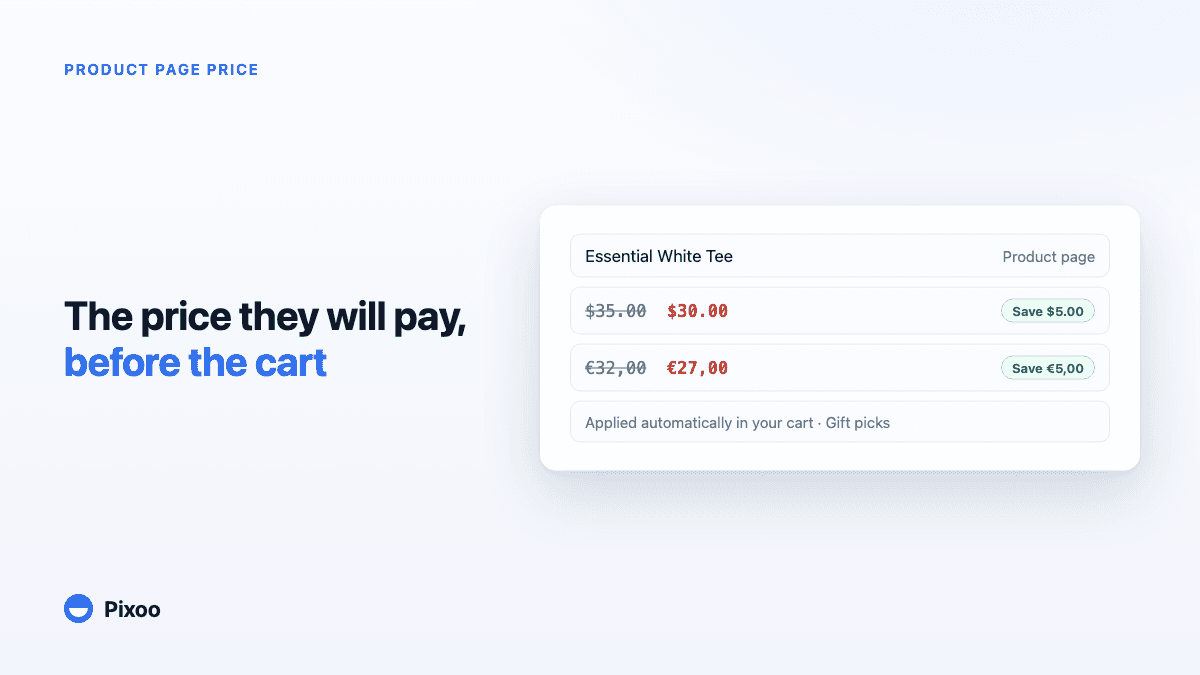
- Pixoo adds the discounted price, a savings badge and the discount's name under the theme price, using the amount you set for each currency, so five dollars off is five euros off, not €4.27.
- Every displayed price is checked against the cart at the first add to cart. A discount the page cannot be exact about is left out, with the reason listed in your admin.
In this guide:
- Why Shopify shows the full price until the cart
- What a discounted price on the product page has to get right
- How Pixoo shows the discounted price on the product page
- The discount code badge
- Setting it up in five minutes
- Three traps we hit while testing
- FAQ
On the test store we use to check every Pixoo release, there is a white tee at $35.00 and an automatic discount of 10% on the whole apparel collection. Open the tee's page and you see $35.00. Add it to the cart and the total reads $31.50. Every shopper who leaves from the product page, which is most of them, leaves having seen the full price. The discount was live, funded, and doing nothing.
Searches like shopify show discounted price on product page and shopify automatic discount not showing on product page fill forum threads because this is how Shopify works, not a bug. Below is why, what any fix has to get right, and how Pixoo now does it for stores that sell in more than one currency.
Why Shopify shows the full price until the cart
Shopify has two ways to lower a price. Compare-at pricing is a property of the variant: you set a compare-at price above the price, and the theme draws a strikethrough. It is visible everywhere, and it applies to everyone, with no rules. Discounts, automatic or by code, are rules evaluated against a cart: eligibility, minimum spend, collections, markets, customer groups. A rule needs a cart to be evaluated, so Shopify evaluates it in the cart and at checkout, and nowhere else.
That is a reasonable design for the checkout. It is a bad experience for the product page. A discount that depends on nothing the product page cannot see (10% on this collection, in this market, for anyone) is still hidden there, because the theme has no discount engine to run.
The usual workarounds all trade something away:
- Edit compare-at prices for the sale. It works on the product page, but now the discount is not a discount: it stacks with every code, it ignores markets, and it has to be undone by hand or by a scheduled bulk edit that runs on time or not at all.
- A sale badge in the theme ("10% off in cart"). Honest, but it is a sentence, not a price, and it never knows the shopper's currency.
- A script that computes the discounted price in the theme. This is the right idea, and it is where the difficulty starts, because computing it correctly is the whole problem.
What a discounted price on the product page has to get right
A product page that shows a discounted price is making a promise. Three things make the promise true or false.
The unit. The page prices one item. Any discount whose outcome depends on the rest of the cart, such as a minimum purchase amount, an amount spread once per order, or a quantity threshold, cannot be turned into a unit price. Showing "$30.00" for a discount that needs a $100 cart is a lie for most visitors. For a spend threshold, the honest surface is a cart progress bar, not a strikethrough.
The currency. A fixed-amount discount converted by Shopify gives €4.27 off for a $5 discount. The number is exact and wrong at the same time: no merchant chose it, and a French shopper reads it as a rounding error. If your store sets the amount per currency, as Pixoo does, the page has to use the amount set for the shopper's currency, and round the way the checkout rounds, or the product page and the cart will disagree by a cent. We wrote about that cent in why fixed-amount discounts end up with odd cents.
Who the shopper is. A discount limited to customer tags, segments, or B2B companies depends on a login the storefront cannot verify. A page that guesses will sometimes be wrong. The only honest answer is to show nothing for those discounts and say so in the admin.
Which leaves a simple rule: show the discounted price when, and only when, the page can predict the checkout exactly. Everything else stays at the theme price.
How Pixoo shows the discounted price on the product page
Pixoo runs its discounts as Shopify Functions, with the amount set per currency and per market inside Shopify's own Discounts tab. Since the rules are Pixoo's, the storefront can replay them for one unit. Here is what a shopper sees once the feature is on.
A line under the theme price. The theme keeps its price. Right under it, Pixoo adds the full price struck through, the discounted price, and a badge such as "Save $5.00". A small line names the discount: "Applied automatically in your cart · Gift picks", so the shopper knows there is nothing to type. The line inherits the theme's font; the colours are yours.
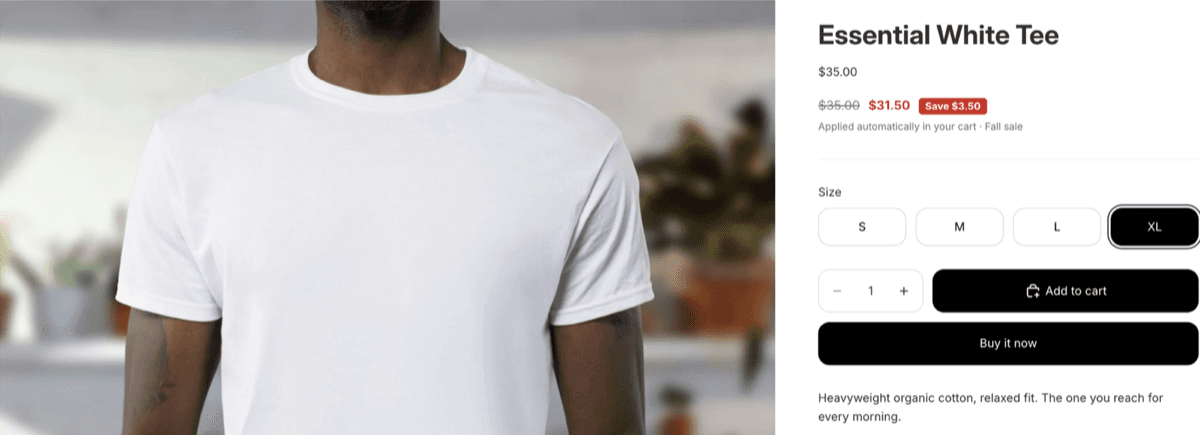
In the shopper's currency, never converted. The badge reads "Save $5.00" in the United States and "Save €5,00" in France, because those are the two amounts you set. For a currency you left unset, with conversion enabled on the discount, Pixoo converts with the store's rate and rounds to the cent the same way the checkout does. Percentages are simply applied to the local price.
On collection cards too. The same line appears on the product cards of collection pages, so the discount is visible while browsing, not only after a click.
The exact rules, mirrored. A discount limited to specific markets shows only in those markets. A discount for full-price items only skips variants that have a compare-at price. A discount that needs three items shows a hint, "10% off from 3 items", and leaves the price alone, since one unit does not qualify yet. A cap on the number of discounted items adds "max. 5 items" next to the badge.
Checked at the first add to cart. When the shopper adds a product whose price was displayed, Pixoo reads the cart and compares the discount Shopify actually applied with the one displayed. They match to the cent, or the line hides itself for the rest of the session and Pixoo records the mismatch so we can look at it. In our testing the check has never fired on a correctly configured discount; it exists for the day a theme or a Shopify change makes it fire.
Everything else is left out, with the reason. In the admin, every product discount of your store is listed as Shown, Off, or Excluded, and an excluded discount says why: minimum purchase amount, spread once per order, customer segment, a collection built from variant conditions. You change the discount, or you accept that this one stays a cart surprise.
The discount code badge
Automatic discounts are the natural fit for a product page, because they apply to everyone. Codes are different: a code is something you chose to give to some people, and publishing it on every product page is a decision, not a default.
So the code badge is off until you switch it on, twice: once for the surface, then once per code. When it is on, a product covered by the code shows a badge, "Use code WELCOME10, 10% off this item", with the code of the shopper's market if you use a different code per market. One click copies it; the shopper enters it at checkout as usual.
Two rules keep it honest. Bulk codes are never shown, since each one is meant for one recipient. And a code is never shown on a product that an automatic discount already covers, because Shopify applies one product discount per item and would refuse the code at checkout. That last rule came out of our own testing, below.
Setting it up in five minutes
The whole setup lives in Pixoo, under Storefront, then Prices & codes. In short:
- Activate the Pixoo storefront app embed in your theme editor (one click from the tab, then Save in the editor). It is the same embed as the cart progress bar.
- Switch on Show discounted prices and save. Every safe automatic discount is shown from that moment; switch off the ones you want to keep as a cart surprise.
- Optionally switch on Show discount codes, then each code you want published.
- Open a product page. Horizon, Dawn and most themes need nothing else; on a custom theme, add the Pixoo product price block under your price in the theme editor.
The step-by-step guide, with every setting explained and the traps we met, is at showing the discounted price on product pages. It is included on every plan.
Three traps we hit while testing
We set the feature up on two themes with a dozen discounts before releasing it. Three moments made us think it was broken.
"I switched to euros and nothing changed." The discount had an amount for US dollars only. A fixed-amount discount applies in the currencies you gave an amount for, and in the others only if conversion is on. In euros, the page showed the theme price and nothing else, which is exactly what the checkout would have done. The fix was in the discount, not on the page.
"The code badge is missing on this product." An automatic discount already covered it. We had a 10% code and a 10% automatic discount on the same collection; at checkout, Shopify kept the automatic one and refused the code. Showing the badge there would have sent shoppers to a rejected code, so the page hides it on those products and shows it on the rest.
"I changed the discount and the line vanished." The storefront keeps a copy of your discounts for a few minutes. The old rule was still displayed, the cart applied the new one, the check found a difference, and the line hid itself for that browser session. Ten minutes later everything agreed again. That is the check doing its job, and it is why a change takes up to ten minutes to reach shoppers.
Frequently Asked Questions
How do I show the discounted price on a Shopify product page?
For a discount that applies to everyone, without a minimum spend, you need an app that replays the discount rule on the product page and adds a second price line under the theme price. Pixoo does this for its own product discounts: the full price struck through, the discounted price, a savings badge and the discount's name, on product pages and collection cards. Compare-at prices are the native alternative, but they are not discounts: they stack with codes and ignore markets.
Why does my Shopify automatic discount not show on the product page?
Because Shopify evaluates discounts against a cart, and a product page has no cart. The discount appears in the cart and at checkout only. This is by design, not a misconfiguration, and it applies to every automatic discount, native or app-based.
Can a product page show a discounted price in the shopper's currency?
Yes, if the discount amount is defined per currency. Pixoo lets you set the amount for each currency and shows that amount on the product page in the currency the shopper is browsing in: five dollars off in the United States, five euros off in France. A converted amount such as €4.27 never appears.
Does the discounted price on the product page always match the cart?
It has to, or it should not be shown. Pixoo shows a discounted price only for discounts it can compute exactly for one unit, and checks the first add to cart against what Shopify applied. If the two ever disagree, the line hides itself for the session and the mismatch is recorded.
Which discounts cannot be shown on a product page?
Any discount whose result depends on the cart or on the shopper: a minimum purchase amount, a fixed amount spread once per order, a quantity threshold, customer tags or segments, B2B, subscriptions. These are listed as excluded in Pixoo's admin with the reason. A minimum purchase amount belongs on a cart progress bar instead.
Can I show a discount code on the product page?
Yes, with Pixoo's code badge, which is off by default and switched on per code. It shows the code that applies to the product in the shopper's market, with its value, and copies it on click. It is never shown on a product that an automatic discount already covers, because Shopify would refuse the code there.
The white tee on our test store now reads $35.00, then $31.50 right under it, with a badge that says so. In Paris the same page reads €32,00 and €28,80. The discount did not change. What changed is that the shopper sees it at the moment they decide, and the checkout agrees to the cent. The rest of the story, every setting and every trap, is in the setup guide, and the bigger picture is in the complete guide to multi-currency discounts.
Recommended Articles
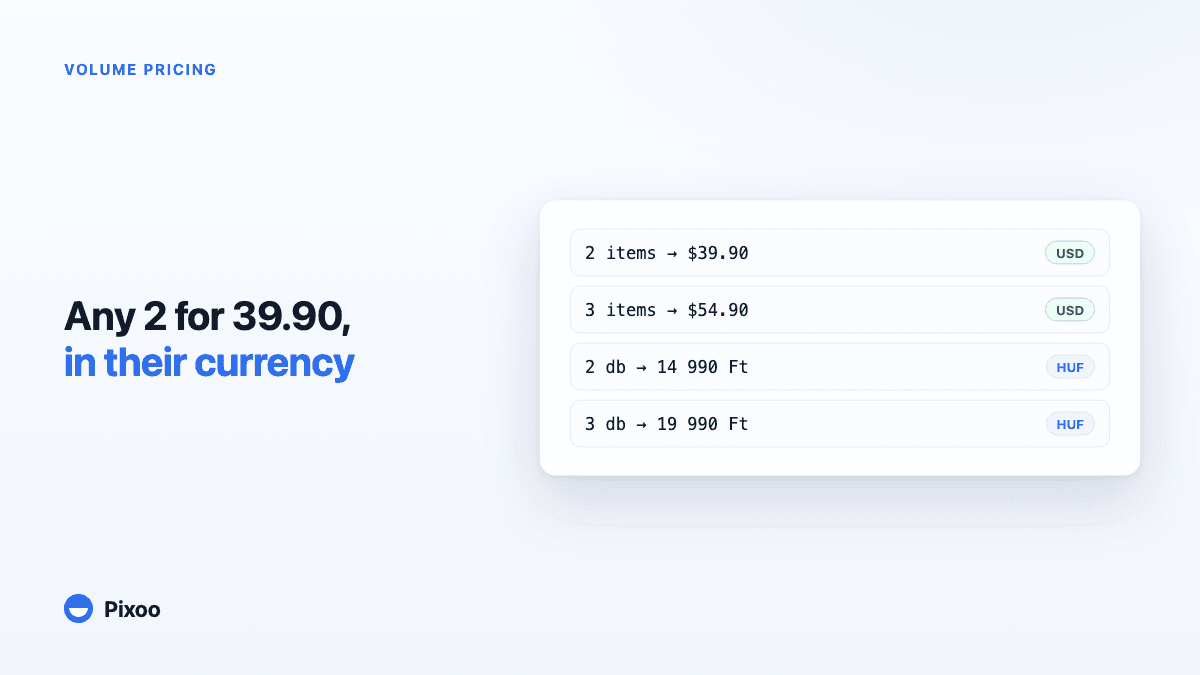
Shopify Volume Pricing in Every Currency: 2 for $39.90, 3 for $54.90, Without Converted Cents
A "2 for 30" offer only works if the price is round in every currency the shopper pays in. Here is why native Shopify discounts make that hard, and how Pixoo lets you type the price of the set per currency and works out the discount at checkout.
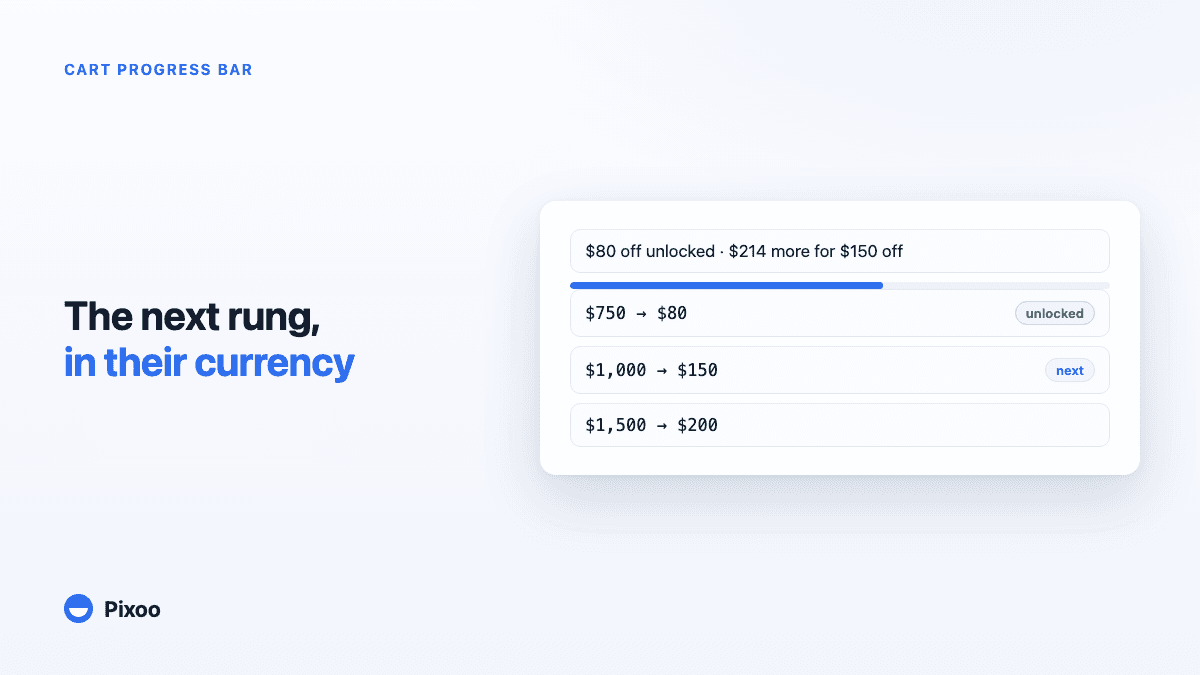
Shopify Cart Progress Bar for Tiered Discounts: Show Shoppers What the Next Rung Unlocks
A "spend 100, get 10 off" discount is invisible in Shopify until the checkout page, so most shoppers never know they were close. Here is how a cart progress bar fixes that for tiered discounts, in every currency, without ever promising a reward the checkout will not give.