Free Gift with Purchase on Shopify: Why Customers Never Claim the Gift (and How Auto-Add Fixes It)

Pixoo
Multi-currency discounts for Shopify
Free Gift with Purchase on Shopify: Why Customers Never Claim the Gift (and How Auto-Add Fixes It)
Key takeaways
- Shopify's native Buy X Get Y discounts require the customer to add the gift to the cart themselves — most shoppers never realise they qualify
- An unclaimed gift is a double loss: the promotion costs you margin planning, but never delivers the conversion lift it was designed for
- Auto-adding the gift the moment the cart qualifies — with a clear notification — turns a silent promotion into a visible "wow" moment
- Pixoo adds the gift automatically, shows a message in your customer's language, and works with currency-specific thresholds across all your markets
In this guide:
- The Silent Failure of Buy X Get Y Offers
- What Auto-Add Actually Does
- Why Gift with Purchase Works So Well
- Setting It Up in Pixoo
- Best Practices for Choosing Your Gift
- Going Global: Currencies and Languages
- FAQ
You built the perfect promotion: buy a pair of sneakers, get a matching pair of socks free. You set up the Buy X Get Y discount in Shopify, announced it in your newsletter, and waited for the conversion lift. Two weeks later, the numbers are flat — and when you check the orders, almost nobody actually received the socks.
The Silent Failure of Buy X Get Y Offers
Here's what the setup flow doesn't tell you: with a standard Shopify Buy X Get Y discount, the discount engine only prices the gift — it never adds it to the cart. Your customer has to know the offer exists, understand which product qualifies as the gift, navigate to that product's page, and add it to their cart themselves. Only then does the discount kick in and make it free.
In practice, that chain breaks at every link:
- Customers don't read promotion banners. They land on a product page from an ad or a search result, add the product, and head to checkout.
- Even customers who saw the offer forget it at cart time. The cart page shows what they added — nothing suggests a free item is waiting to be claimed.
- Customers who remember often add the wrong variant, and the discount silently doesn't apply, which reads as a broken promise at checkout.
The result is the worst of both worlds. Shoppers who would have been delighted by a surprise gift never see one. And the few who discover the offer after ordering write to your support team asking why their gift is missing — turning a goodwill gesture into a service ticket.
If you've ever searched "Shopify buy x get y not working", this is almost always the real cause: the offer works exactly as designed — the design just expects the customer to do the work.
What Auto-Add Actually Does
Auto-add flips the responsibility. Instead of waiting for the customer to claim the gift, the store adds it for them the moment their cart qualifies — and tells them about it:
Concretely, with Pixoo's auto-add gift feature, here is what happens on your storefront:
- Your customer adds the qualifying product (or reaches the qualifying cart amount).
- The gift appears in their cart automatically, priced by your Buy X Get Y discount — free, or at the discounted value you configured.
- A small notification appears in the customer's language: "🎁 Cozy Crew Socks added to your cart — you saved $12.00!"
- If the cart later drops below the requirement — they remove the sneakers, say — the gift is removed automatically too. No orphaned freebies, no margin leaks.
And just as important, what does not happen:
- If the customer removes the gift, it stays removed. Nobody likes a cart that fights back. The gift only returns if the customer removes the qualifying product and deliberately re-adds it — a fresh start, not nagging.
- The gift is never charged at full price. Pixoo verifies that your discount actually applied to the added line; if for any reason it didn't, the gift is quietly removed rather than risking a surprise charge at checkout.
- Your theme is never modified. The feature runs through a Shopify theme app embed — a toggle in your theme editor, no code changes, no design changes.
Why Gift with Purchase Works So Well
Gift with purchase is one of the oldest tactics in retail, and it survives because it leans on two reliable behaviours:
Reciprocity. A visible, unexpected gift creates goodwill at the exact moment the customer is deciding whether to complete the purchase. A discount code feels transactional; a physical gift in the cart feels generous.
Perceived value without price erosion. A "$12 gift" costs you far less than $12, but the customer values it at full price. Compare that with a 15% discount, which costs you exactly 15% and trains customers to wait for the next sale. This is the same asymmetry behind the Rule of 100 for discount framing — how an offer is presented changes its impact more than what it costs.
Average order value, on demand. Pair the gift with a spend threshold ("free beanie on orders over €80") and you've built an AOV incentive that customers actually see happening in their cart — the moment the threshold is crossed, the gift lands, and the notification confirms they made the "right" decision. For thresholds that give money off rather than a gift, the cart progress bar does the same job of showing the shopper how close they are.
None of this works if the gift stays invisible. The mechanics above only trigger when the customer sees the gift arrive — which is exactly what auto-add guarantees.
Setting It Up in Pixoo (Step by Step)
The auto-add option lives inside Pixoo's Buy X Get Y discount form:
- Create (or edit) a Buy X Get Y discount in Pixoo. Set the method to Automatic — auto-add works with automatic discounts, because the storefront can detect qualification without a code.
- In the "Customer gets" section, select the gift: one product with a single variant, so there's no ambiguity about what gets added.
- Tick "Automatically add the gift to the customer's cart".
- Optionally customise the notification message per language. Use the
{product},{amount}and{discount}variables —{amount}renders the real savings in the customer's own currency. A live preview shows exactly what your customers will see. - Click "Turn on in theme editor" — this opens your theme editor with the Pixoo embed pre-selected. Hit Save once. This is a one-time step per theme and doesn't change your theme's design or code.
- Save the discount. That's it — the gift now adds itself.
The requirement side supports quantities ("buy 2, get 1 free"), specific products or entire collections, and minimum purchase amounts per currency — more on that below.
Best Practices for Choosing Your Gift
A few patterns we see across stores that get the most out of gift-with-purchase:
- Pick a natural companion, not leftover stock. Socks with sneakers, a charging cable with a device, a travel-size product with the full-size one. The gift should make the main product better — that's what makes the moment feel curated rather than promotional.
- Keep one variant. A one-size-fits-most or single-variant product avoids the "wrong size arrived" support tickets that variant-choice gifts generate.
- Mind the perceived-value ratio. The sweet spot is a gift worth 10–20% of the qualifying purchase. Below that it feels token; above it, customers suspect the "gift" is priced in.
- Say the price. "Free socks" is nice. "You saved $12.00" is measurably nicer — it anchors the gift's value. Pixoo's
{amount}variable does this automatically, in the customer's currency. - Watch your gift's inventory. The gift is a real product with real stock. If it sells out, the discount simply stops applying — plan inventory like you would for the promotion's expected volume.
Going Global: Currencies and Languages
This is where most gift-with-purchase setups fall apart for international stores, and where Pixoo's multi-currency DNA matters:
Thresholds per currency. A "free gift over $100" offer converted blindly becomes €92.47 in France and ¥14,830 in Japan — thresholds that look broken. With Pixoo you define clean, market-appropriate amounts per currency (€90, ¥15,000), and the auto-add evaluates the cart in the currency your customer is actually browsing in. If you're new to currency-specific discounting, our complete guide to multi-currency discounts covers the fundamentals.
Notifications in the customer's language. The gift moment only works if the customer understands it. Pixoo ships with built-in translations (English, French, German, Spanish, Italian, Portuguese, Dutch) and lets you override the message per published storefront language — the language tabs in the discount form mirror exactly the languages your store serves.
Savings shown in the right currency. The {amount} in the notification is the real, presentment-currency saving — a French customer sees "vous économisez 12,00 €", not a dollar figure they'd have to convert.
If you're still weighing whether to run promotions through Shopify's native tools or an app, our comparison of Pixoo vs Shopify native discounts breaks down when each is the right call.
Frequently Asked Questions
Does auto-add work with discount codes?
Not in the current version — auto-add requires an automatic Buy X Get Y discount. A code only applies at checkout, after the customer types it, so the storefront can't know in advance whether a visitor holds the code. An automatic discount qualifies from the cart contents alone, which is what makes a trustworthy auto-add possible.
Will it change or slow down my theme?
No. The feature is a Shopify theme app embed: you enable it with one toggle in the theme editor, and it can be disabled the same way. It doesn't edit your theme's code, and the script is a few kilobytes that load asynchronously — no render-blocking, no layout changes.
What happens if the customer removes the free gift?
It stays removed for their session — Pixoo never forces a gift back into a cart the customer just cleaned. If their cart later drops below the offer requirement and then qualifies again (a genuinely new decision), the gift is offered again.
What if the gift is out of stock?
The gift is a normal product, so Shopify's inventory rules apply: when it's unavailable, it simply isn't added, and your discount continues to work for customers who add other qualifying items.
Does it work on all themes?
Pixoo supports Online Store 2.0 themes, with live cart refresh wired for both Dawn-based and Horizon-based theme families (the vast majority of stores). On themes with custom cart implementations the gift is still added correctly — the cart display updates on the next page load.
Can I offer the gift at 50% off instead of free?
Yes — the auto-add follows whatever value your Buy X Get Y discount defines: free, a percentage off, or a fixed amount off. Just remember that a partially-paid "gift" is a purchase the customer didn't choose, so free remains the recommended configuration for auto-add.
Turn Your Next Promotion Into a Moment
A Buy X Get Y offer that customers have to discover is a promotion running at a fraction of its potential. Auto-adding the gift — visibly, politely, in the right language and currency — is the difference between a discount that exists and a gift that gets felt.
The feature is available now in Pixoo Multi-Currency Discounts on all plans: create a Buy X Get Y discount, tick one box, and let the socks find their sneakers.
Recommended Articles
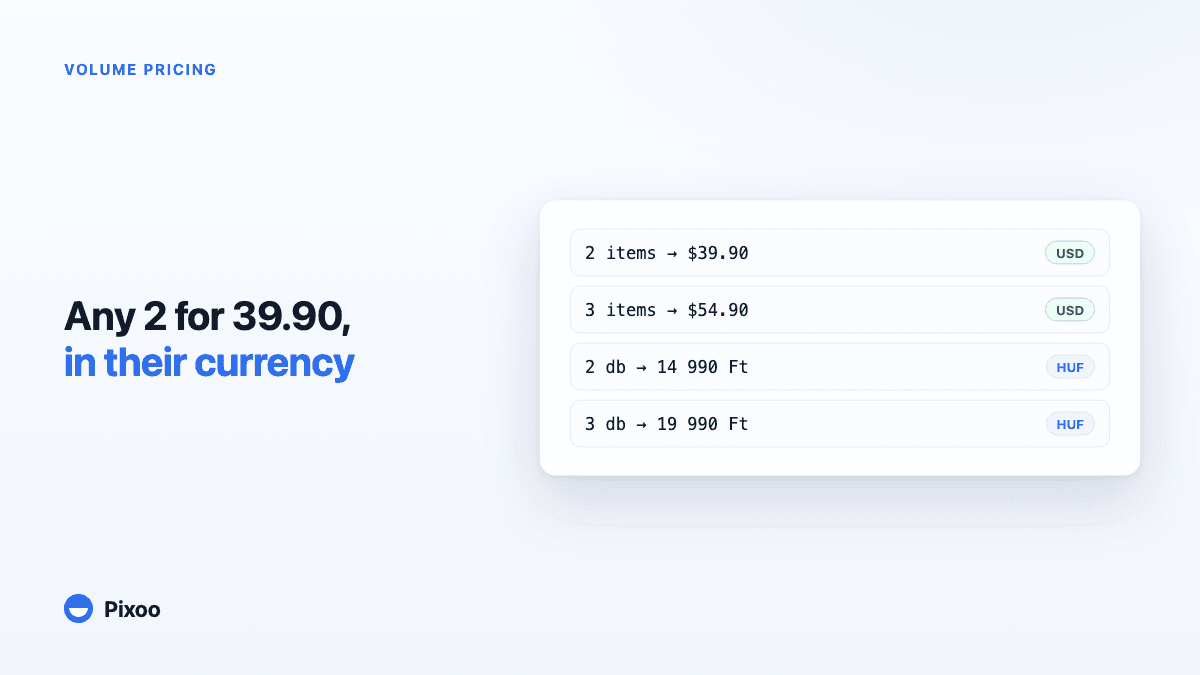
Shopify Volume Pricing in Every Currency: 2 for $39.90, 3 for $54.90, Without Converted Cents
A "2 for 30" offer only works if the price is round in every currency the shopper pays in. Here is why native Shopify discounts make that hard, and how Pixoo lets you type the price of the set per currency and works out the discount at checkout.
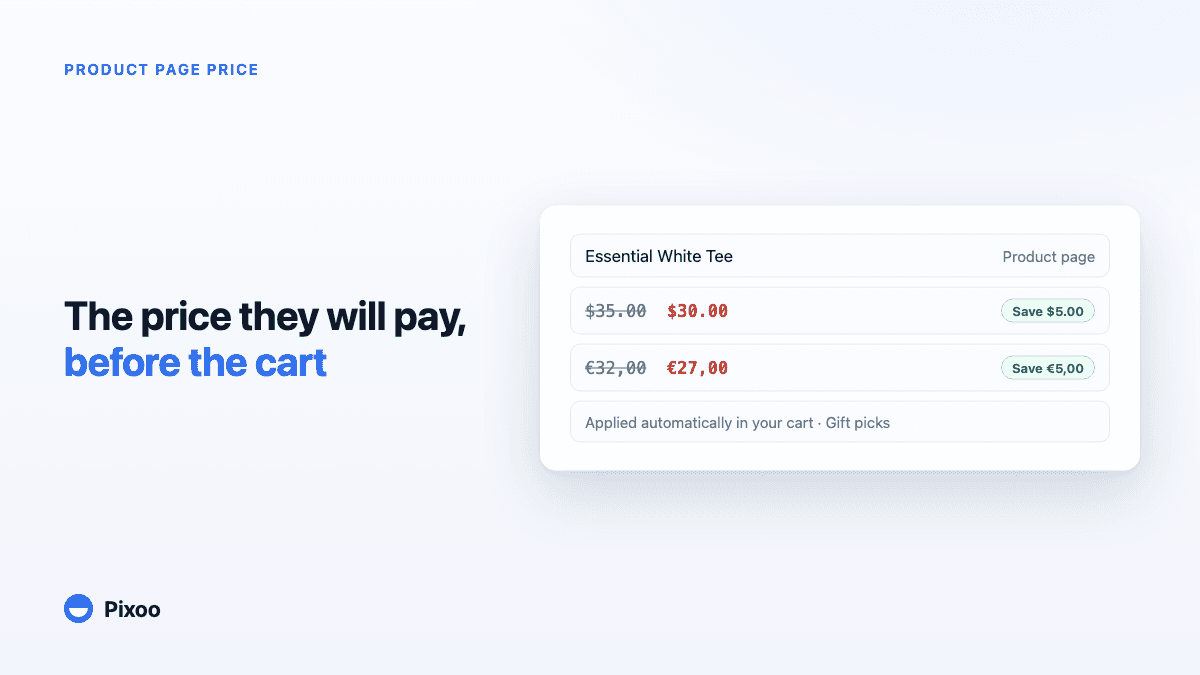
How to Show the Discounted Price on Shopify Product Pages, in Every Currency
An automatic discount on Shopify is applied in the cart, so the product page keeps showing the full price and most shoppers never learn there was a deal. Here is how to show the price they will actually pay, on the product page, in their own currency, without ever displaying a price the checkout will not honour.