Discounted price and savings badge
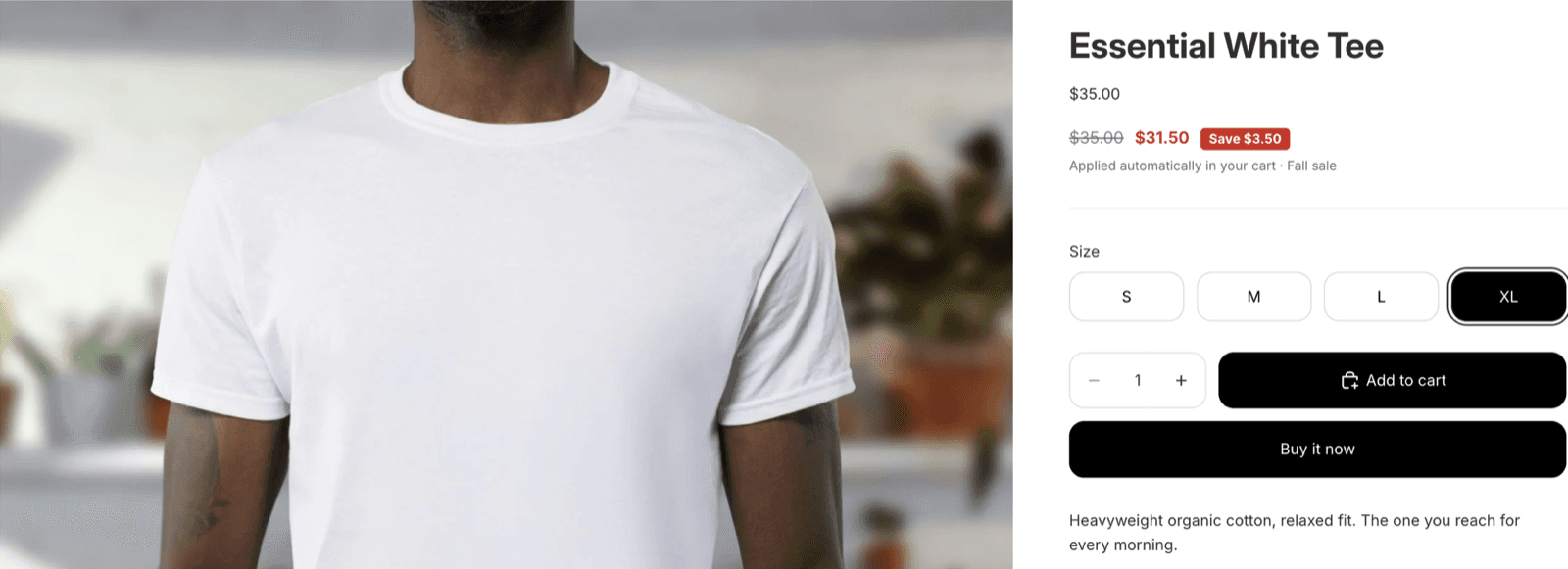
On product pages and collection cards, a line shows the theme price struck through, the discounted price, and a badge such as "Save $3.50". The amount is the one you configured for the shopper's currency, so it matches the cart to the cent.
On by default for every safe automatic discount, one switch per discount to turn it off.
Discount code badge
Optionally, a badge shows the code that applies to this product in the shopper's market, with what it is worth. One click copies it. Nothing is published until you switch on the surface and each code.
Off by default. Your codes stay private until you decide otherwise.
One rule behind everything on this page
The page only shows a price the checkout will honour. When Pixoo cannot be exact about a discount, it shows nothing for it and tells you why in the admin. A missing price costs you a nudge; a wrong price costs you a customer.
- At least one product discount created in Pixoo. Automatic or code, a fixed amount or a percentage, on specific products or on collections. Order discounts and shipping discounts do not show on product pages.
- An Online Store 2.0 theme. Horizon, Dawn, and most themes from the Shopify Theme Store. Pixoo finds the price element by itself on these; on a custom theme, an app block does the job. Both are covered below.
- Five minutes. The setup is two switches and one theme editor visit, most of it done once for both storefront features.
- 1
Activate the Pixoo storefront app embed
In your Shopify admin, open Pixoo, then Storefront, then the Prices & codes tab. Next to App embed, click Open theme editor. Your theme editor opens on the app embeds panel: toggle Pixoo storefront on, then click Save in the editor.
Back in Pixoo, the status next to App embed reads "Active" once the script has run on your storefront. Open any product page of your store to trigger it, then click Check the status.
This embed is shared with the cart progress bar. If you already activated it for the bar, this step is done.
- 2
Turn on discounted prices
In the section Show discounted prices on product and collection pages, switch on Show discounted prices. Choose where the line appears: Product pages, Collection cards, or both. Click Save in the bar at the top.
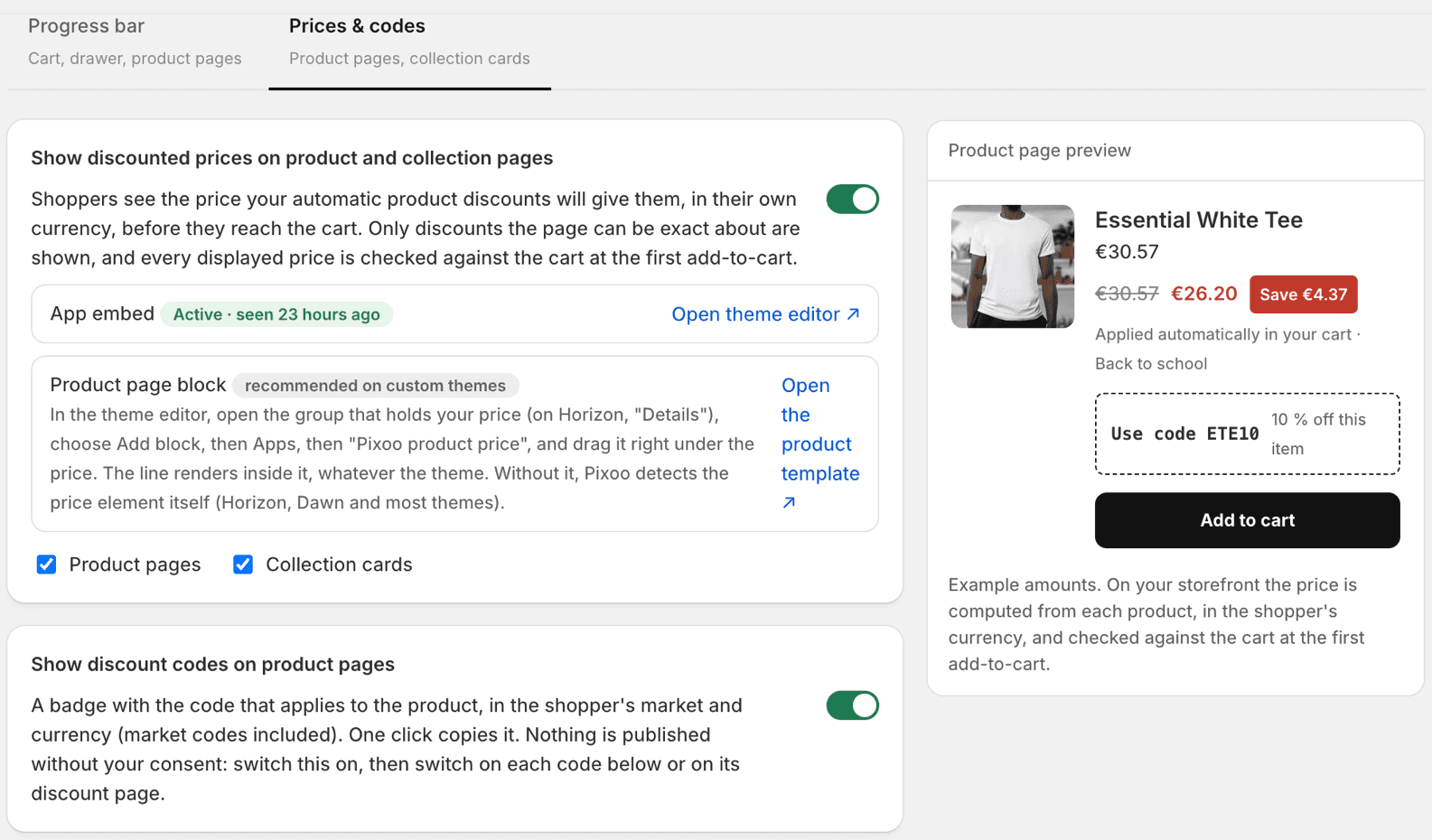
The Prices & codes tab. The two switches on the right are the whole activation: one for prices, one for codes. - 3
Check which discounts are shown
The section Which discounts are shown lists every product discount of your store. Each automatic discount reads Shown, Off, or Excluded with the reason in plain words. Use the switch on the right to hide a discount you would rather keep as a cart surprise. The change applies without saving the page.
The same switch lives on the discount itself: open a product discount in Pixoo and look for the Storefront card, right after the customer message.
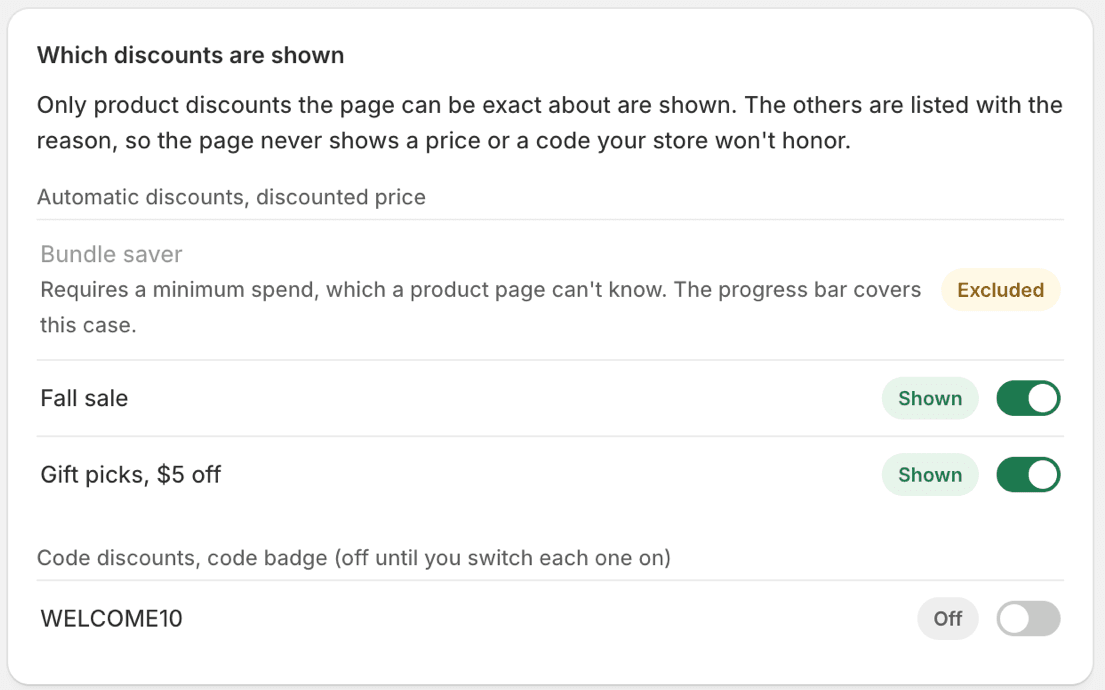
Automatic discounts first, code discounts below. An excluded discount says why, so you can change the discount rather than guess. - 4
See it on your store
Open a product covered by one of the shown discounts. The line appears under the theme price. Add the product to the cart: the cart total confirms the same price.
A change made in Pixoo can take up to ten minutes to reach the storefront, because the storefront keeps a copy of your settings for five minutes and your browser may keep one too. Open the page in a private window if you want to see it right away.
To understand what the page decided, add
?pixoo_debug=1to the product URL. A panel in the bottom left corner lists the discounts received, whether each one applies to this product and why, and where the line was placed. Only you see it, and only with that parameter.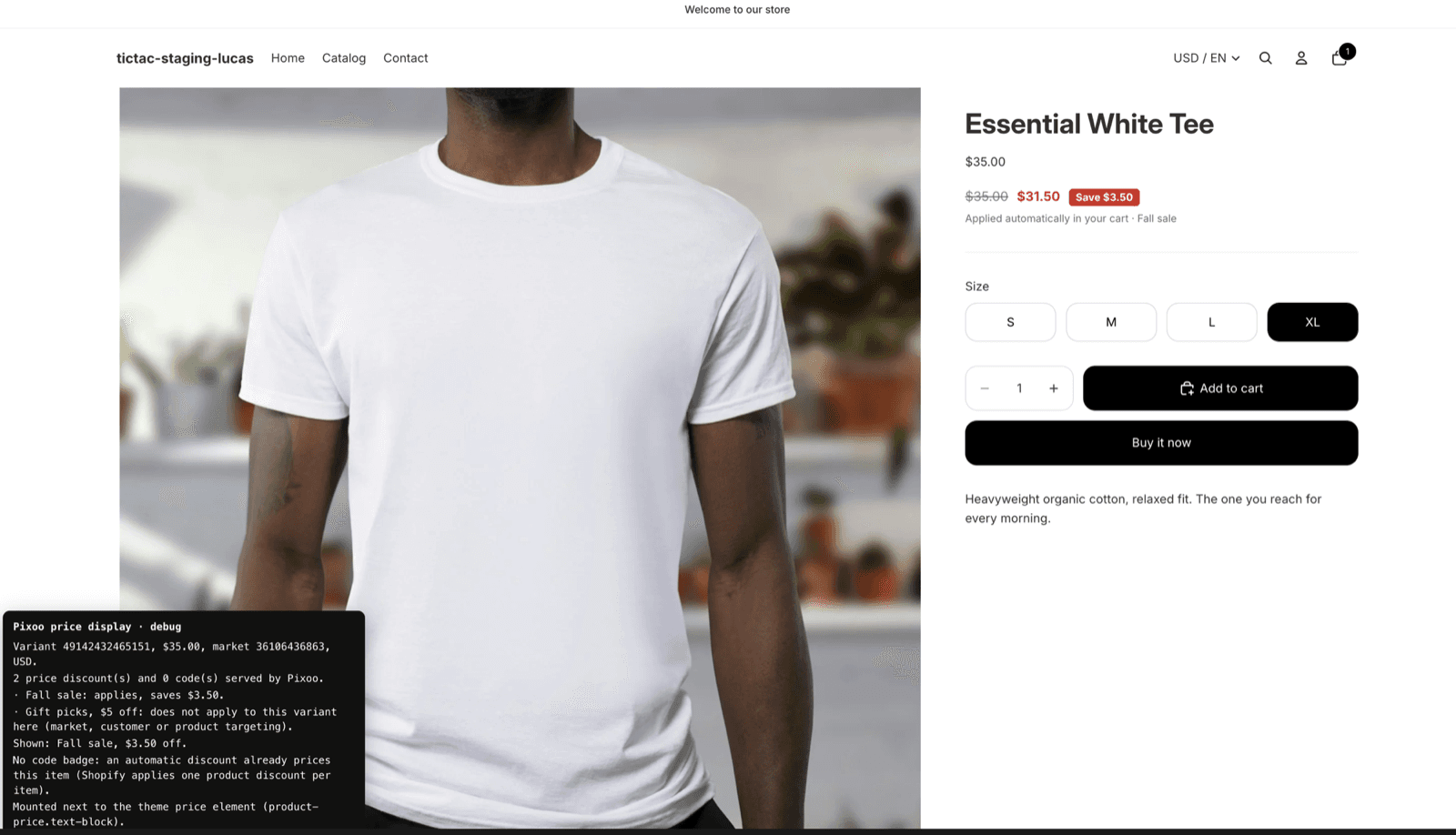
The diagnostic panel, opened with ?pixoo_debug=1. When something does not show, the answer is usually on this panel.
- 1
Switch on the surface
In Show discount codes on product pages, switch on Show discount codes and save. Nothing is visible yet: this only opens the door.
- 2
Switch on each code
In Which discounts are shown, the code discounts are listed below the automatic ones, all Off. Switch on the ones you want to publish. Codes you leave off, and every code you create later, stay private.
- 3
What the shopper sees
A badge with the code and what it is worth on this item, for example "Use code SUMMER10, 10% off this item". A click copies the code and shows a short confirmation; the shopper enters it at checkout as usual. On a store with market codes, the badge shows the code of the shopper's market.
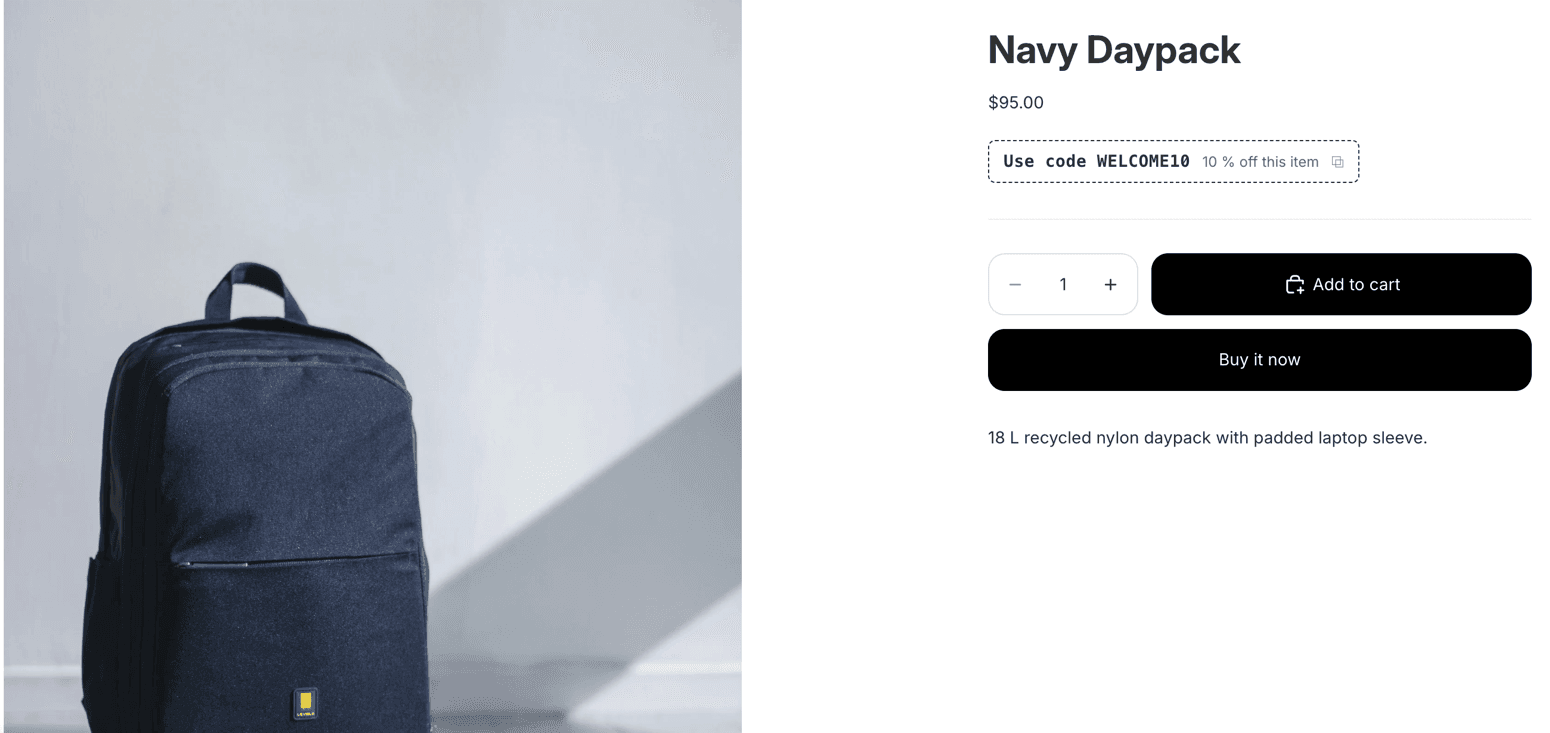
The code badge. One click copies the code; the price itself is not changed, since the code is applied at checkout.
Automatic discounts win over codes
Shopify applies one product discount per item and picks the best one. If an automatic discount already prices the product, a code on the same product would be refused at checkout, so Pixoo shows the discounted price and no code badge on that product. The badge appears on the products the automatic discount does not cover.
| The discount | What happens |
|---|---|
| A single code, with or without market codes | Shown once you switch the code on. The shopper sees the code that matches their market. |
| Bulk codes | Never shown. Bulk codes are single-use and meant for one recipient each. |
| Code close to its usage limit | Hidden when fewer than 10% of uses remain, so nobody copies a code that just ran out. |
| Once per customer | Shown with a "once per customer" mention. The page cannot know whether this shopper already used it. |
| Product already discounted by an automatic discount | No badge on that product. Shopify applies one product discount per item, so the code would be refused there. |
Automatic placement
By default Pixoo finds the price element of the product page and of the collection cards by itself. Horizon, Dawn, and the themes built on them need nothing else. The line is inserted right after the theme price and inherits your theme's font.
The app block, for custom themes
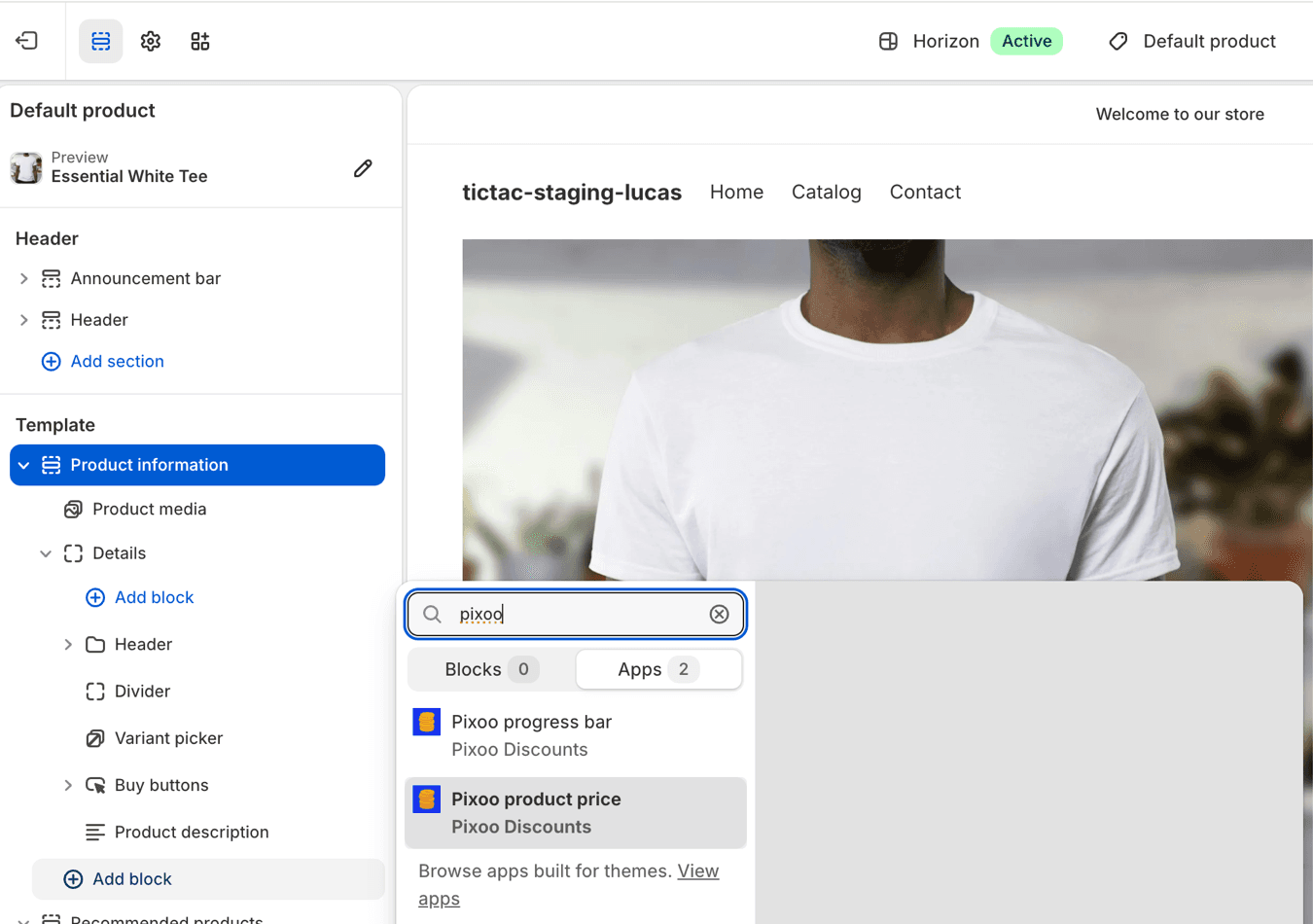
If the line does not show, or lands in the wrong place, add the Pixoo product price block where you want it. In Pixoo, click Open the product template next to Product page block. In the theme editor, open the group that holds your price (on Horizon it is called Details), click Add block, then Apps, then Pixoo product price. Drag it right under the price and save. The line then renders inside the block, whatever the theme does with its own price markup.
The theme editor cannot drop an app block inside a group from a link, which is why the block is added by hand from the group itself. Once placed, the line stays there across theme updates.
Custom selectors, as a last resort
The Advanced section of the tab accepts a CSS selector for the product page price and another for the collection card price. Use them only if neither the automatic placement nor the block suits your theme. Empty means automatic. If you are not sure what to type, send us the store URL and we will send you the selector.
Show discounted prices on product and collection pages
The first section is the activation of the price line itself.
Show discounted prices
Switch · Default: off
The master switch for the price line and the savings badge. Off: nothing from this feature is visible on your store, on any product, and your other settings are kept for later. On: every automatic discount marked Shown in the list below gets its line. This switch does not control the code badge, which has its own.
App embed
Status, with Open theme editor
Not a setting but a check. It tells you whether the Pixoo storefront app embed is on in your live theme and whether the script has run recently: "Not activated yet", "Activated", then "Active · seen 2 minutes ago" once a shopper or you opened a page. Open theme editor takes you to the app embeds panel of your live theme. App embeds are per theme: a draft or preview theme needs its own activation.
Product page block
Link, Open the product template
Optional. Opens your product template in the theme editor so you can add the Pixoo product price block by hand, right under the price. Only needed when the automatic placement does not find or misplaces the line. See Placement above.
Product pages
Checkbox · Default: on
Shows the line on the product page, under the price of the selected variant. It follows the variant the shopper picks.
Collection cards
Checkbox · Default: on
Shows the line on the product cards of collection pages, for the first fifty products of the collection. Untick it if your cards are too tight for a second price line.
Show discount codes on product pages
Show discount codes
Switch · Default: off
Opens the code badge surface. On its own it publishes nothing: every code is still off in the list below until you switch it on individually. Off: no code badge anywhere, even for codes you had switched on, which stay ready for when you switch the surface back on. Independent from the price switch: you can show codes without showing prices, and the other way round.
Which discounts are shown
One row per product discount of your store, automatic discounts first, code discounts below. The rows update when you open the tab; no saving needed, each switch applies at once.
Shown
Status
The discount qualifies, its switch is on, and the surface is on. Shoppers see it on the products it covers.
Ready
Status
The discount qualifies and its switch is on, but the surface switch at the top is off. Nothing is visible yet; switch the surface on and this row becomes Shown.
Off
Status
The discount qualifies but you switched it off. It keeps applying in the cart as usual; it is simply not announced on the product page.
Excluded
Status, with the reason
The page cannot be exact about this discount, so it will not show it. The reason is written under the discount name, and the table in "Which discounts qualify" below explains each one. Change the discount to make it qualify; there is no override.
Show [discount name]
Switch per automatic discount · Default: on
Whether this automatic discount gets a price line. On by default because the discount already applies to every shopper in the cart, so announcing it changes nothing about who gets it. Turn it off to keep a discount as a cart surprise.
Show code [discount name]
Switch per code discount · Default: off
Whether this code is shown in a badge. Off by default, always: a code is something you chose to give to some people, and Pixoo never publishes it on your behalf. New codes start off too.
Texts
One field per message the shopper can read. The buttons above the fields pick the language you are editing; a shopper sees the language of the storefront they browse. An empty field means Pixoo's default in that language, so you only type what you want to change. The buttons under a field insert the tokens it accepts; a token is replaced on the page by the real value.
Badge next to the discounted price
Text, with a Show checkbox · Default: "Save {{amount}}"
The badge shown after the discounted price, for automatic discounts.
{{amount}}is the saving for one unit, in the shopper's currency. Untick the checkbox next to the field to remove the badge entirely and keep only the two prices.Line under the price (automatic discounts)
Text, with a Show checkbox · Default: "Applied automatically in your cart · {{title}}"
The small line under the prices that tells the shopper the discount will apply by itself, with the discount's name in
{{title}}. Untick the checkbox to remove this line; the prices and the badge stay. The line is also left out automatically when two discounts tie, since the page cannot tell which name the checkout will use.Hint for discounts with a minimum quantity
Text · Default: "{{value}} off from {{quantity}} items"
Shown instead of a discounted price when the discount needs a minimum number of items, since one unit does not qualify yet.
{{value}}is the discount (for example 10% or $5),{{quantity}}the minimum.Mention when a discount caps the number of items
Text · Default: "max. {{max}} items"
Added after the badge when the discount applies to a limited number of items per order.
{{max}}is that limit.Code badge label
Text · Default: "Use code {{code}}"
The first part of the code badge.
{{code}}is the code itself, the one for the shopper's market when you use market codes.Code badge value
Text · Default: "{{value}} off this item"
The second part of the badge, what the code is worth on this product.
{{value}}is the discount as configured (a percentage or an amount in the shopper's currency).Message after the code is copied
Text · Default: "Code {{code}} copied. Enter it at checkout."
The short confirmation shown for a few seconds after the shopper clicks the badge.
Mention for once-per-customer codes
Text · Default: "once per customer"
Added to the badge when the code is limited to one use per customer, so the shopper is not surprised at checkout if they already used it.
Appearance
How the line sits next to your theme's price. The font is always the theme's.
Add a line under the theme price
Mode · Default: selected
The theme's price stays exactly as it is, and Pixoo's line (full price struck through, discounted price, badge) comes right after it. Nothing in your theme is hidden or modified, which is why this is the recommended mode: it cannot break a theme.
Replace the theme price
Mode
Hides the theme's price element and shows Pixoo's line in its place, so the shopper sees one price block instead of two. It depends on how your theme builds its price, so check a product page with and without a discount before keeping it. If the theme's price comes back on variant change, use the block instead.
Discounted price
Colour · Default: #c0392b
The colour of the discounted price in Pixoo's line.
Badge background
Colour · Default: #c0392b
The background of the savings badge and the code badge.
Badge text
Colour · Default: #ffffff
The text colour inside both badges.
Advanced
Two CSS selectors for themes that place prices in unusual containers. Leave them empty unless the automatic placement fails and the block is not an option. Empty means automatic.
Product page price CSS selector
Text · Default: empty
The element of the product page after which Pixoo's line is inserted, for example
.product__info-container .price. Wrong selector: no line, never a broken page.Collection card price CSS selector
Text · Default: empty
The same for the price inside each product card of a collection page, for example
.card__information .price.
Preview, Save and Discard
On the right of the tab, and in the bar at the top.
Preview
Live
A sample product card that renders your texts and colours for the language selected in Texts, with an automatic discount and, when the code surface is on, a code badge. It is a sample, not one of your products: it shows the layout, not your real discounts.
Save / Discard
Bar at the top
The switches at the top, the texts, appearance and advanced fields are saved together with Save. Discard drops the unsaved changes. The per-discount switches in the list apply at once and do not need Save. After a save, the storefront can take up to ten minutes to reflect the change.
On the discount page: the Storefront card
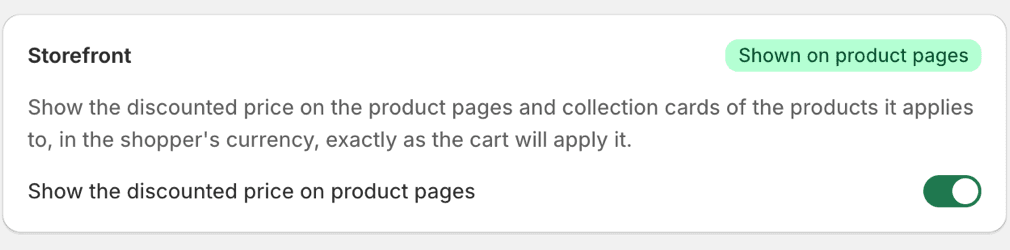
Every product discount you open in Pixoo has a Storefront card in its form, right after the customer message, so you can decide per discount without leaving it.
Status
Badge
"Shown on product pages": visible right now. "Off for this discount": you switched it off here or in the list. "Surface off": the discount is on, but the surface switch in the Storefront tab is off. An excluded discount shows the reason instead.
Show the discounted price on product pages / Show this code on product pages
Switch
The same switch as in the list, for this discount. Price: on by default. Code: off by default. Applies at once.
| The discount | What happens |
|---|---|
| Automatic discount, fixed amount or percentage, on products or collections | Shown. The line reads the discount the way the checkout will apply it, with the amount you set for the shopper’s currency. |
| Discount limited to specific markets | Shown in those markets only. The page reads the market the shopper is browsing in. |
| Minimum quantity (for example 10% off from 3 items) | Shown as a hint under the price, never as a discounted price: one unit does not qualify yet. |
| Cap on the number of discounted items | Shown, with a short mention of the cap next to the price. |
| Full-price items only | Shown only on variants without a compare-at price, exactly like the checkout. |
| Minimum purchase amount | Not shown here. A product page cannot know the cart total. The cart progress bar covers this case. |
| Fixed amount spread once per order | Not shown. The price of one unit depends on what else is in the cart. |
| Limited to customer tags, segments, or B2B companies | Not shown. The storefront cannot verify who the shopper is, so the page does not guess. |
| Subscription purchases only | Not shown. The product page prices the one-time purchase. |
| Collection built from variant conditions (for example all variants tagged "sale") | Not shown. Shopify’s new collections can target single variants, and a page cannot replay their conditions. Use a collection of whole products, or select the variants by hand. |
| More than 1,000 targeted variants | Not shown. Use a collection instead of a product list. |
| Scheduled, expired, or ending in the next few minutes | Shown only while active. It is hidden a few minutes before the end date so a cached page never shows an expired price. |
- Same arithmetic as the checkout. The amount shown is the one you set for the shopper's currency. For a currency you did not set, with conversion enabled on the discount, Pixoo converts with the store's own rate and rounds the way the checkout does.
- Doubt means silence. A discount whose outcome depends on something the page cannot see (the cart total, who the shopper is, a variant condition) is never shown. It is listed as excluded in the admin with the reason.
- Checked at the first add to cart. When the shopper adds a product whose price was displayed, Pixoo reads the cart and compares the discount Shopify actually applied with the one displayed. They match to the cent, or the display hides itself for the rest of the session and Pixoo records the mismatch so we can look into it.
- Best single discount, like Shopify. When several discounts cover a product, the page shows the largest saving for one unit, which is what the checkout picks. If two tie, the amount is shown and the discount name is left out, since the page cannot tell which one the checkout will name.
Traps we hit while testing
We set up the feature on two themes and a dozen discounts before releasing it. These are the moments where we thought something was broken and it was not.
- I switched currency and the price did not change
- The discount had an amount for one currency only. A fixed-amount discount applies in the currencies you gave an amount for, plus the others only if you enabled conversion on the discount. In a currency where the discount does not apply, the page shows the theme price and nothing else, which is correct. Check the discount's currencies, or test in one you configured.
- I created a discount and it is not in the list
- Pixoo re-reads your discounts at most once every ten minutes, so a discount created a moment ago can be missing from the list until the next refresh. Reload the tab after ten minutes; it will be there, Shown or Excluded with its reason. Discounts edited in the Shopify admin (renamed, paused) are refreshed the same way.
- I changed a setting and the store still shows the old one
- The storefront keeps a copy of your settings for five minutes, and your browser may keep the page for a few more. Ten minutes is the worst case. A private window shows the new state sooner. While waiting, the diagnostic panel shows what the page currently has.
- The code badge shows on some products and not others, with the same discount
- On the products where an automatic discount already applies, there is no badge on purpose: Shopify keeps one product discount per item and would refuse the code there. We hit this with a code and an automatic discount on the same collection; the checkout refused the code, so the badge would have lied.
- The line shows the amount but not the discount name
- Two discounts give the same saving on that product. The amount is certain, the name the checkout will pick is not, so the page shows the amount only.
- The discounted price is written differently from my theme prices
- It should not be: the line uses your store's money format (decimal separator, currency symbol, position). If you spot a difference, send us the product URL.
- On Horizon, the block was added at the bottom and I cannot move it
- The theme editor adds an app block at the end of the template and does not let you drag it into a group such as Details. Delete it, open the Details group, click Add block, Apps, Pixoo product price, and it sits under the price. Once it is inside the group, you can drag it within it.
- I activated the embed but I am previewing another theme
- App embeds are per theme. The Open theme editor link activates the live theme; a draft theme you preview needs the embed toggled in its own editor. The status in Pixoo reads Active as soon as any theme with the embed has loaded a page.
- A discount on a "small sizes" collection is excluded
- Shopify collections can now contain single variants. A collection that selects variants by a condition (variant title contains "S", for example) cannot be replayed on a product page exactly, so the discount is excluded. A collection where you picked the variants by hand works: the page knows exactly which ones.
- A "10% off from 3 items" discount shows no discounted price
- One unit does not qualify, so the page shows the hint "10% off from 3 items" under the price and leaves the price alone. The discounted price appears in the cart once the quantity is reached.
- A capped discount (for example 5 items max) shows on the product, and the cart total is different
- The cart applies the cap; the product page prices one unit, which is within the cap, and adds the "max. 5 items" mention. A shopper buying more than the cap sees the difference in the cart, with the mention having said so.
When something does not show
- Nothing shows on any product page
- Check, in this order: the app embed status reads "Active" in Pixoo; the Show discounted prices switch is on and saved; the discount reads Shown in the list, not Off or Excluded; the product is actually covered by the discount, in the market and currency you are browsing in. Then wait ten minutes or open a private window. The diagnostic panel tells you which of these is missing.
- It shows on some products but not others
- The discount targets specific products, variants, or collections, and the page follows that exactly. A product with a compare-at price is skipped when the discount is set to full-price items only. A variant-condition collection is not supported (see above).
- The line disappeared after I edited the discount
- The storefront still had the previous version of the discount for a few minutes and the cart check found a difference, so the display hid itself for that browser session. Open a new tab, or wait ten minutes. Nothing was shown to shoppers that the checkout would not have given.
- The line lands in the wrong place, or the panel says no price element was found
- Add the Pixoo product price block under your price in the theme editor, as described in Placement above. If the block is not an option on your theme, use the selectors in Advanced, or send us the store URL.
- A discount reads Excluded and I do not understand why
- The reason is written under its name in the list. Most often the discount has a minimum purchase amount (the progress bar is the right surface for it), is spread once per order, or is limited to customer tags or segments. Editing the discount makes it qualify the next time the list is refreshed.
- Collection cards show the line for some products only
- On a collection page, Pixoo prices the first fifty products of the collection. Beyond that, and on the next pages of a paginated collection, the theme price is left untouched rather than replaced by a guess. The product page always shows the line.
- A shopper copied a code and it was refused at checkout
- Check whether an automatic discount also covers that product: Shopify keeps the automatic one and refuses the code. Pixoo hides the badge in that case, but a discount created or changed in the last ten minutes may not have reached the page yet. Also check the code's own limits: schedule, markets, usage limit, once per customer.
Still stuck? Email support@pixoo.app with your store domain and, if you have one, a screenshot of the diagnostic panel. We will look at it directly.
Related reading: setting up the cart progress bar, showing volume pricing with the lot selector and the complete guide to multi-currency discounts.