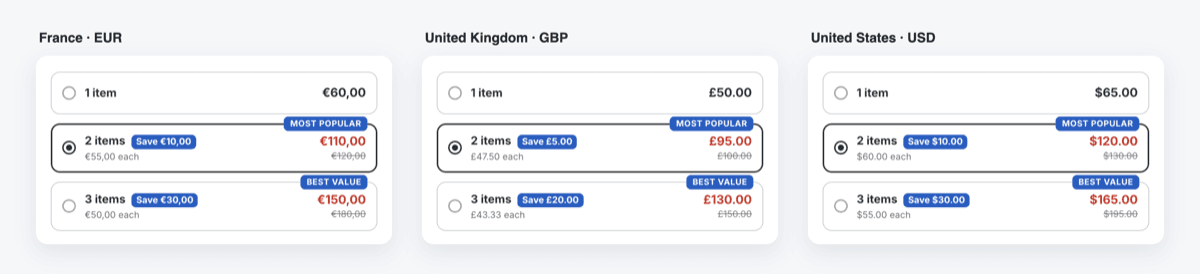
On the product page, cards such as "1 item", "2 items" and "3 items" take the place of the theme's quantity selector. Each lot card shows the lot total, the regular price of the same number of units struck through, the saving, and the price per item. A click on a card sets the quantity of the theme's add-to-cart form; your discount then applies the lot price in the cart, as it already does today.
The exact lot price, in the shopper's currency
The cards read the lot prices you set for the currency the shopper is browsing in. Nothing is converted: a currency you did not price gets no cards, because it gets no discount either.
Badges and a preselected lot
Mark one lot "Most popular" and another "Best value", and choose which card is selected when the page opens. Texts in seven languages, colours shared with your other Pixoo storefront displays.
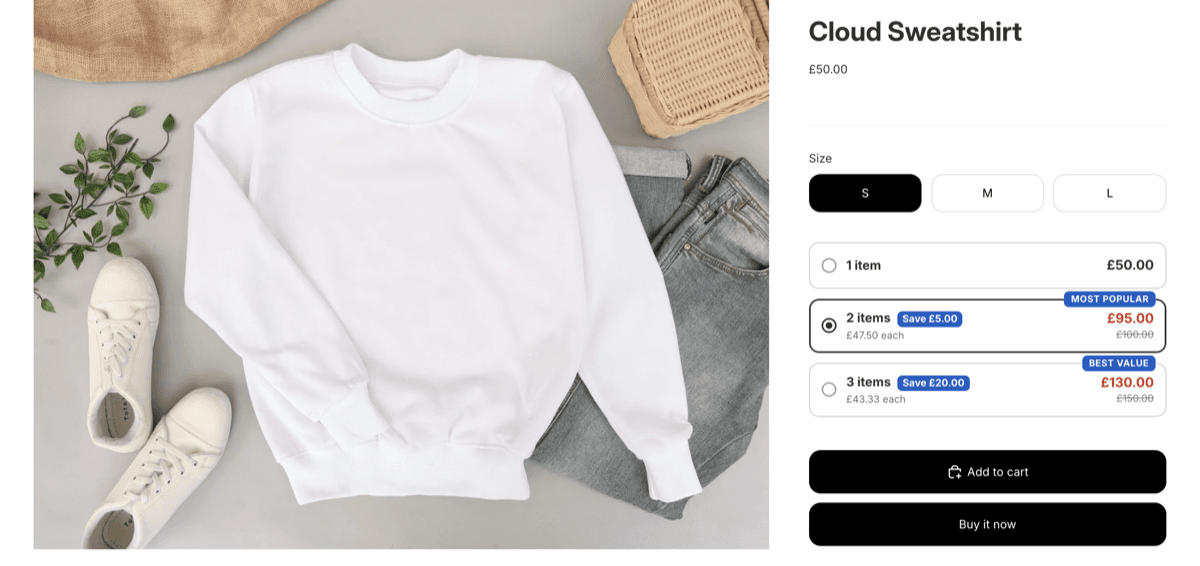
What the shopper sees
- A "1 item" card at the price of the selected variant.
- One card per lot, with the lot total, the regular price of the same units struck through, "Save" and the price "each".
- Your badges, and the lot you preselected already selected. The quantity of the add-to-cart form follows the card they pick.
- Cards recomputed when they change variant, size or colour.
- In a currency you did not price, no cards: the theme's quantity selector, as before.
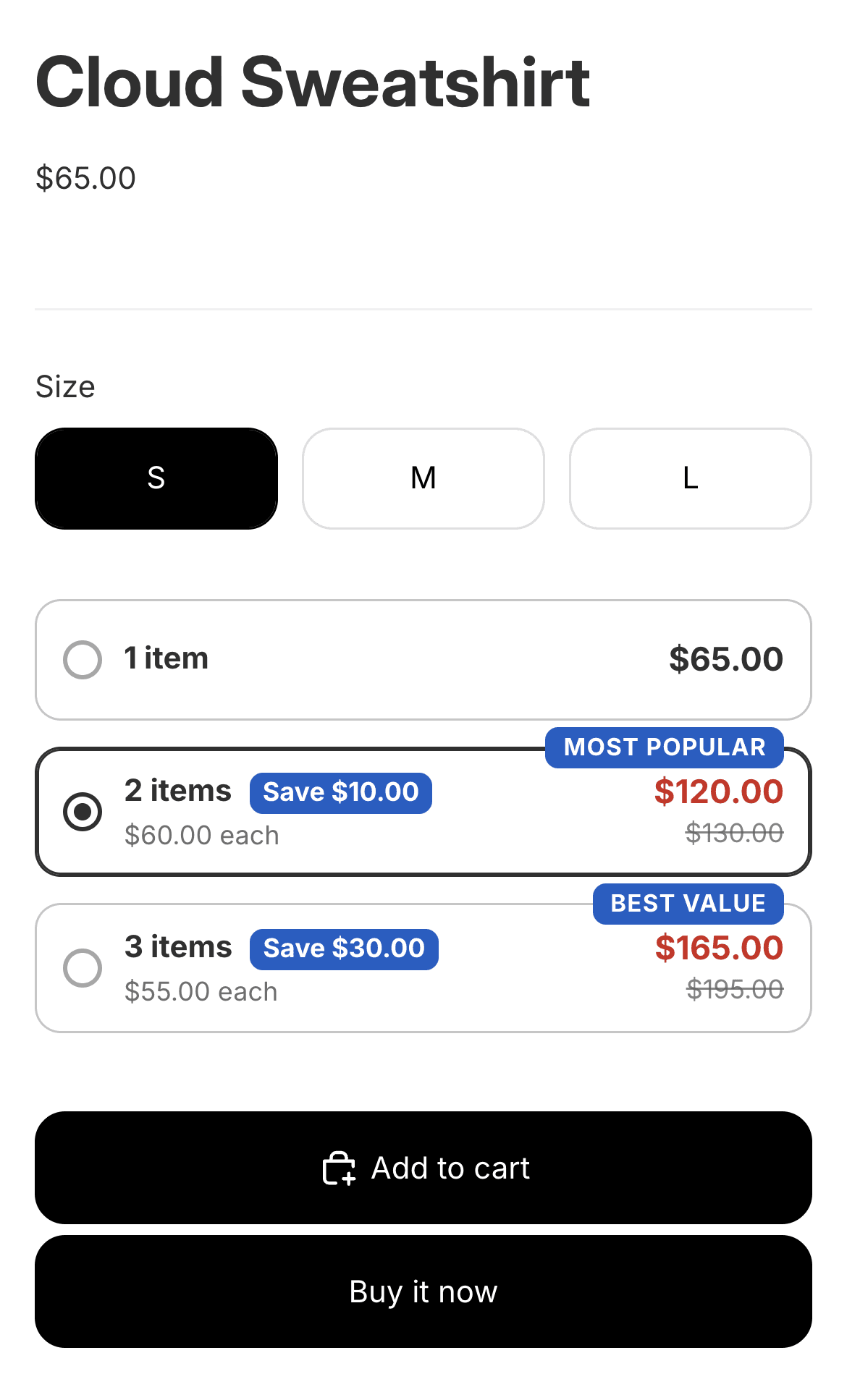
The lot selector is available on every Pixoo plan. It is off until you switch it on, discount by discount, because it replaces an element of your theme.
One rule behind every card
A card only shows a price the cart will honour. When Pixoo cannot be exact about a lot, it shows no cards and leaves your theme's quantity selector alone. The admin and the diagnostic panel tell you why.
- An automatic product discount in Pixoo, in Volume pricing mode, with lot prices for at least one currency. If you do not have one yet, the first step below creates it.
- An Online Store 2.0 theme. Horizon, Dawn, and most themes from the Shopify Theme Store. The cards can place themselves, and an app block gives a cleaner render. Both are covered below.
- Five minutes. If you already activated the Pixoo app embed for the discounted price or the progress bar, it is one switch on the discount.
- 1
Set your lot prices per currency
In Pixoo, create a product discount (or open one) with the method Automatic discount. In the Discount Value card, choose Volume pricing. Pick the number of Tiers (up to five; the same quantities apply to every currency), then for each currency type the Items and the Price for the set. Use Add a currency for each currency you sell in. Save the discount.
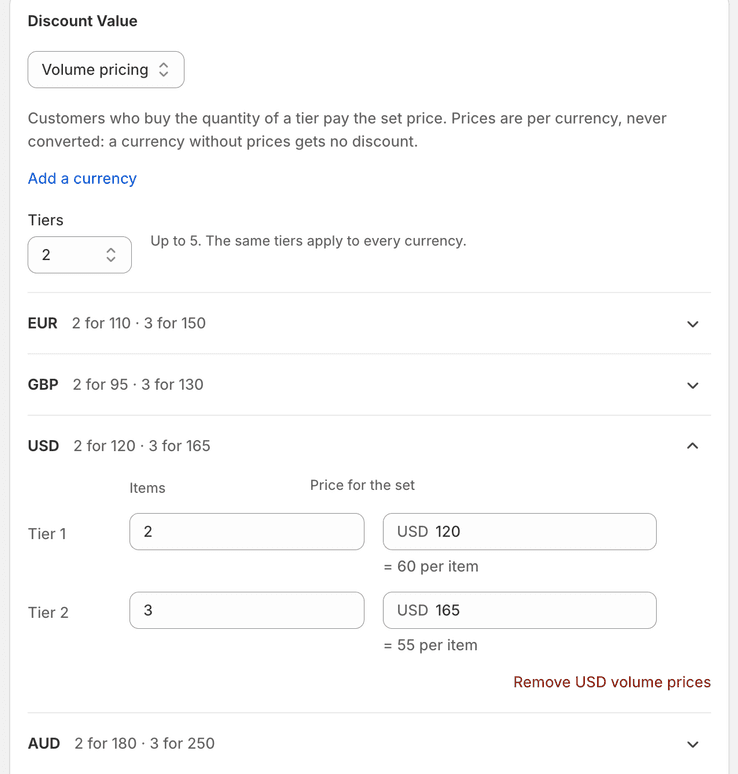
Volume pricing on the discount. Prices are per currency and never converted: a currency without prices gets no discount. Volume pricing works without the lot selector: the cart applies the lot prices either way. The selector is what makes them visible before the cart.
- 2
Activate the Pixoo storefront app embed
Open Pixoo, then Storefront, then the Lot selector tab. In Installation, next to App embed, click Open theme editor. Toggle Pixoo storefront on in the app embeds panel and click Save in the editor.
The same embed runs the discounted price and the progress bar. If you activated it for one of them, this step is already done.
- 3
Turn on the lot selector on the discount
Back on your volume pricing discount, scroll to the Storefront card and its section Lot selector on the product page. Switch on Show the lot selector on product pages. Then choose the Preselected lot and, if you want them, which lot gets the "Most popular" badge and the "Best value" badge. A preview of the cards, in your store's colours, updates as you choose.
These settings apply at once, without saving the discount. The status next to the section title moves from Publishing to Live on product pages when the cards are on your storefront.
The Storefront card appears once the discount exists: on a new discount, save it first.
- 4
See it on your store
Open a product covered by the discount, in a currency you priced. The cards replace the quantity selector. Pick a lot, add to cart: the cart total is the lot price shown on the card.
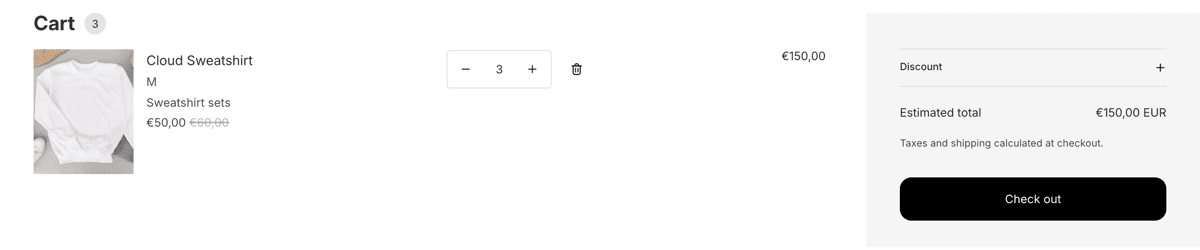
The 3 items card said €150,00. The cart says €150,00: Shopify shows the unit price after the discount, and the total is the lot price. Switch currency or market: the cards follow, with the prices of that currency, or disappear if you did not price it. Add
?pixoo_debug=1to the product URL to see what the page decided (see Troubleshooting).
Automatic placement (app embed only)
With nothing but the app embed, the cards find the theme's quantity selector and take its place. On a theme without a quantity selector, they sit next to the add-to-cart button. The cards are drawn by the script once the page has loaded, so the content below them moves down slightly: the quantity selector is replaced by taller cards.
The "Pixoo lot selector" app block, for zero layout shift
With the block, the cards are in the page HTML before any script runs, so nothing moves. In Pixoo, the Lot selector tab has an Open the product template link next to Product page block. In the theme editor, open the group that holds your buy buttons (on Horizon, it is called Details), click Add block, then Apps, then Pixoo lot selector. Drag it where the quantity selector sits and save.
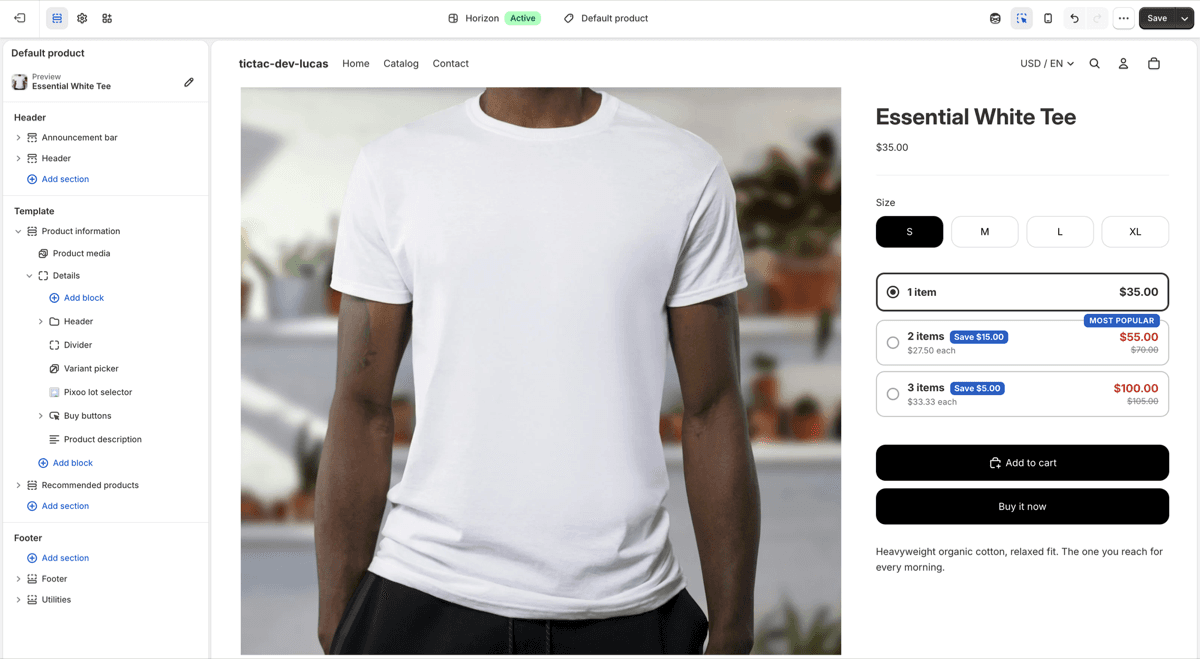
On products without lots, the block is empty and takes no space, so it can stay in a template shared by all your products.
The theme's quantity selector
The cards replace the theme's quantity selector, with the embed as with the block: two controls for the same number would confuse the shopper. The block has one setting, Hide the theme quantity selector when lots are shown, ticked by default. It hides the theme's selector on the products that have lots and leaves it on every other product. Untick it to keep both controls. Whenever the cards are not shown (a currency without prices, a subscription selected), the theme's selector is back.
A shopper who wants more units than your largest lot changes the quantity in the cart.
On the discount page: Lot selector on the product page
In the Storefront card of a product discount in Volume pricing mode. Every change applies at once, without saving the discount.
Show the lot selector on product pages
Switch · Default: off
Whether this discount gets lot cards on the product pages of the products it applies to. Off by default, because the cards replace an element of your theme. Off: the discount keeps applying its lot prices in the cart, nothing changes on the product page.
Preselected lot
Select · Default: 1 item (theme default)
The card selected when the page opens, and so the quantity in the add-to-cart form. Choose one of your lots (for example 2 items) to start the shopper on it. The default keeps the theme's behaviour: one item.
"Most popular" badge
Select · Default: No badge
The lot that carries the "Most popular" badge, in the top right corner of its card. One lot at most.
"Best value" badge
Select · Default: No badge
The lot that carries the "Best value" badge. One lot at most, and one badge per lot: giving a lot the other badge removes the first one.
Preview
Live
The cards as they will look, with the real price of the first product the discount targets, in your store currency, and your colours. It warns you when no lot beats the unit price, since the selector would then be hidden on the storefront.
Status
Badge
Live on product pages: shoppers see the cards. Publishing: the change is on its way to the storefront. Off for this discount: the switch is off. Not shown: the discount does not qualify, with the reason under the title. Not on product pages: the switch is on but the storefront did not receive this discount; write to us if it stays that way.
Storefront, Lot selector tab: Lot discounts
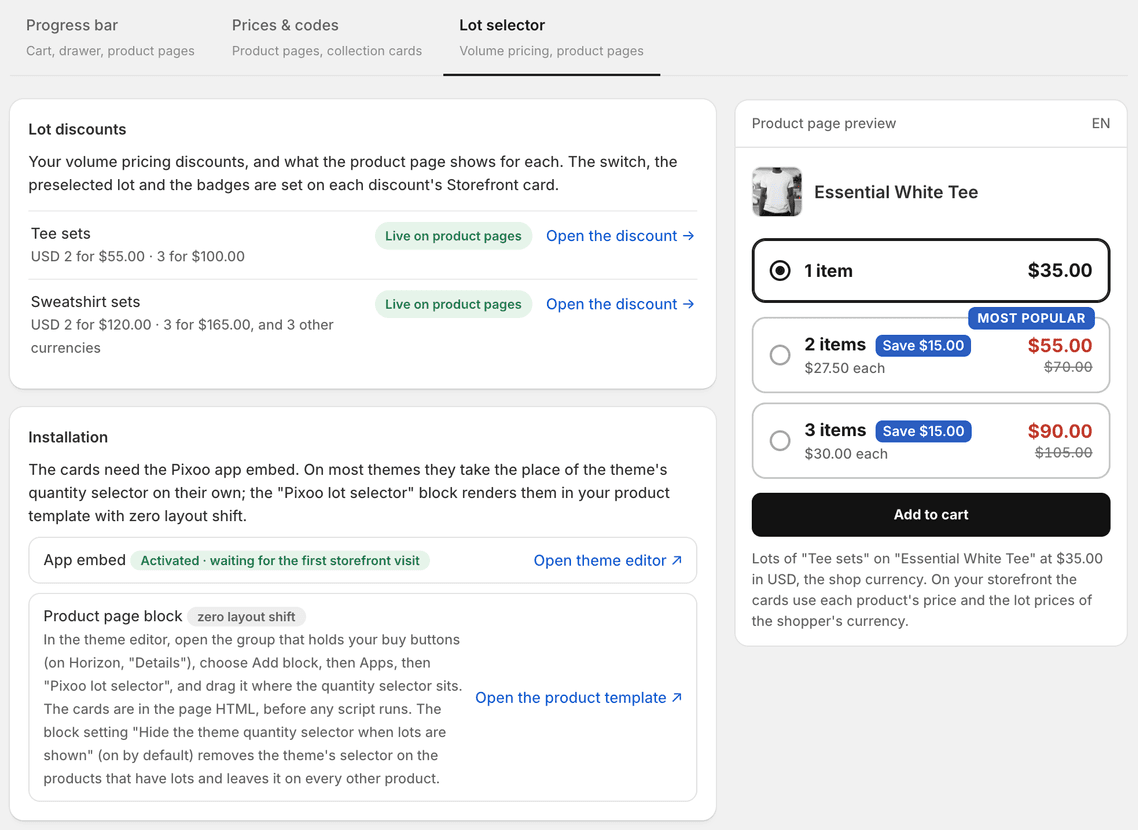
Open Pixoo, Storefront, then the Lot selector tab. The first section lists your volume pricing discounts and what the product page shows for each.
One row per discount
Status and summary
The discount name, its status (Live on product pages, Publishing, Off for this discount or Not shown), and a summary of its lots in your store currency, for example "USD 2 for $120.00 · 3 for $165.00, and 3 other currencies". A discount that does not qualify shows the reason instead.
Open the discount
Link
Takes you to the discount, where the switch, the preselected lot and the badges are set. There is no switch in this list on purpose: these choices belong to each discount.
Installation
App embed
Status, with Open theme editor
A check, not a setting: whether the Pixoo storefront app embed is on in your published theme and whether the script has run on your storefront. Open theme editor takes you to the app embeds panel. App embeds are per theme: a theme you preview needs its own activation.
Product page block
Link, Open the product template
Optional, recommended for zero layout shift. Opens your product template in the theme editor so you can add the Pixoo lot selector block. See Placement above.
Hide the theme quantity selector when lots are shown
Checkbox, in the block's settings in the theme editor · Default: on
On: the theme's quantity selector is hidden on the products that show lots, from the first render. Off: the cards and the theme's selector are both visible. The only setting of the block.
Texts
Six texts, in seven languages: EN, FR, DE, ES, IT, PT and NL. The buttons above the fields pick the language you are editing; a shopper sees the language of the storefront they browse. An empty field means Pixoo's default in that language. The buttons under a field insert its token, replaced on the page by the real value. Save with the bar at the top of the page.
Card title for a lot
Text · Default: "{{quantity}} items"
The title of each lot card.
{{quantity}}is the number of items in the lot.Card title for a single item
Text · Default: "1 item"
The title of the first card, one unit at the variant price.
"Most popular" badge
Text · Default: "Most popular"
The wording of the badge you place on a lot from the discount.
"Best value" badge
Text · Default: "Best value"
The same for the "Best value" badge.
Saving under the lot price
Text · Default: "Save {{amount}}"
The saving pill of a lot card.
{{amount}}is what the lot saves compared to buying the same number of units at the regular price, in the shopper's currency. Shown only when there is a saving.Unit price line
Text · Default: "{{amount}} each"
The small line under a lot's title.
{{amount}}is the lot price divided by the number of items.
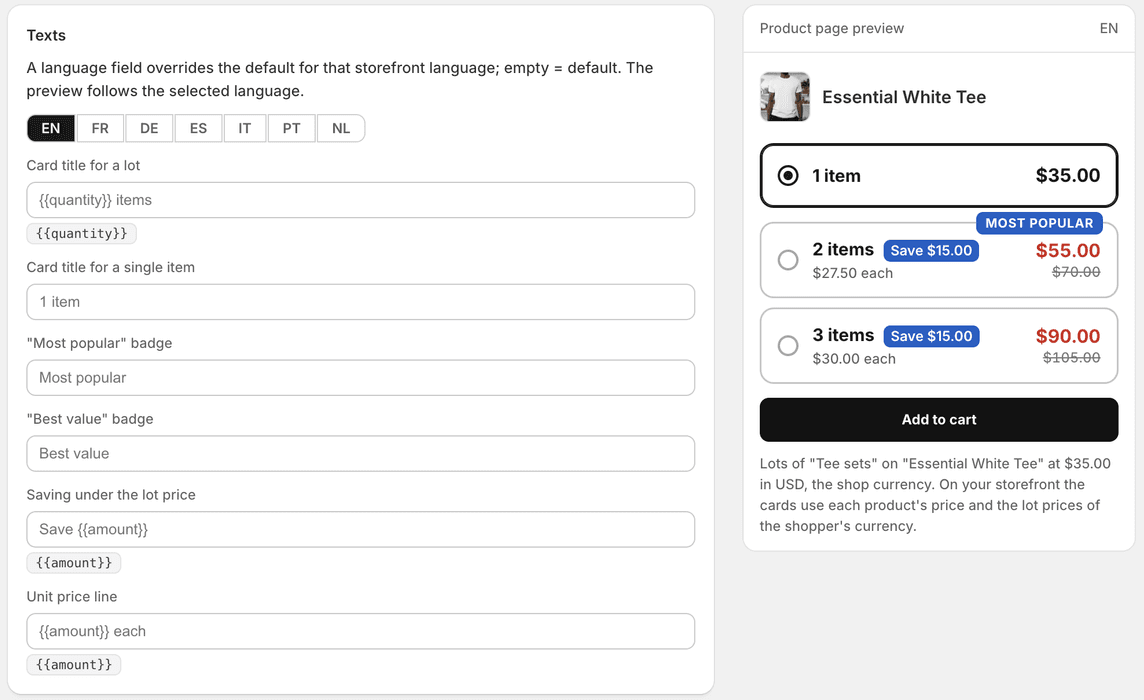
After a save, the banner says the texts are published to your product pages, or, if the storefront has not confirmed yet, that changes can take up to ten minutes.
Colours and preview
Colours
Shared with Prices & codes
The lot price and the badges use the colours of the discounted price and the badges, so your product page stays consistent. They are set once, in Storefront, Prices & codes, Appearance: Discounted price colours the lot price, Badge background and Badge text colour the saving pill and the badges. The font is always your theme's.
Product page preview
Live
Cards 1, 2 and 3 with badges, the saving and the price per item, in the selected language and your colours, updated as you type. It uses your first live lot discount and a real product it targets. Without one, it uses example amounts (2 for €110, 3 for €150) and says so.
| The discount | What happens |
|---|---|
| Automatic product discount in Volume pricing mode | Qualifies. Once you switch the lot selector on for it, its products get the cards, in every currency you gave lot prices for. |
| A currency with lot prices | Cards shown, at the lot prices you typed for that currency, to the cent. |
| A currency without lot prices | No cards. Volume pricing is never converted, so there is no discount in that currency and nothing to announce. The theme quantity selector stays in place. |
| Discount limited to specific markets | Cards in those markets only. The page reads the market the shopper is browsing in. |
| Volume pricing on a code discount | Not shown. A lot price cannot be promised before the shopper enters the code. The lot selector works with automatic discounts only. |
| A minimum quantity on the discount | Not shown. The cart checks the minimum before pricing the lots, so a smaller lot would never be granted. Remove the minimum: the lots already say how many to buy. |
| Limited to customer tags, segments, or B2B companies | Not shown. The storefront cannot verify who the shopper is, so the page does not guess. |
| Subscriptions only, or a subscription selected on the product page | Not shown. Lots price one-time purchases. When the shopper picks a subscription option, the cards disappear and the theme quantity selector comes back. |
| Collection built from variant conditions | Not shown. A page cannot replay conditions that pick single variants. Use a collection of whole products, or select the variants by hand. |
| More than 1,000 targeted variants | Not shown. Use a collection instead of a product list. |
| Lots that save nothing on this variant | Not shown on that variant. If the largest lot costs as much as, or more than, the same number of units at the variant price, there is no deal to show. |
| Scheduled, or ending soon | Shown from the start date, and hidden 11 minutes before the end date so a cached page never shows an expired lot. |
- Same arithmetic as the discount. The cards compute each lot the way your discount does at checkout, from the lot prices of the shopper's currency and the price of the selected variant. When the shopper changes variant, the cards are recomputed.
- Never a converted price. A lot price exists only in the currencies you typed it in. In any other currency, there are no cards, and the theme's quantity selector stays.
- Best value, like Shopify. Shopify keeps the best discount on each line. When another automatic discount of yours is shown on the product page with Pixoo's discounted price, the cards take it into account: the "1 item" card shows that discounted price, no lot is announced above what its units would cost with it, and if that discount beats your largest lot, the cards are hidden, since the cart would not use the lots.
- Checked in the cart. After the shopper adds a lot, Pixoo reads the cart and compares what Shopify charged with the card. If they ever disagree, the cards are hidden for the rest of the session and Pixoo records the mismatch so we can look into it.
- Doubt means silence. A discount whose result depends on something the page cannot see (who the shopper is, a minimum quantity, a code) gets no cards. It is listed with the reason in the admin.
The diagnostic panel
Add ?pixoo_debug=1 to a product URL. A panel in the bottom left corner has a Lot selector section listing the lot discounts received for this product, whether each one applies to the selected variant in the current currency and why, and where the cards were mounted. Only you see it, and only with that parameter.
When nothing shows
- No cards on any product
- Check, in this order: the app embed reads Activated in the Lot selector tab; the discount is automatic and in Volume pricing mode; Show the lot selector on product pages is on and the status reads Live on product pages; you are browsing in a currency you gave lot prices for. The diagnostic panel says which one is missing.
- Cards in euros, nothing in another currency
- That currency has no lot prices on the discount. Volume pricing is never converted, so the discount does not apply there and the page shows nothing. Add the currency in the discount's Discount Value card. The panel reads "no lot price in" followed by the currency.
- Cards on one variant, not on another
- The cards are computed per variant. If a variant is more expensive or cheaper, a lot may save nothing on it ("its lot prices do not beat the unit price x quantity" in the panel), or the variant may not be targeted by the discount.
- The cards disappeared when another sale started
- Another automatic discount, shown with Pixoo's discounted price, gives this product a lower unit price than your largest lot. Shopify keeps the best value, so the cart would not apply the lots, and the page does not announce them. The panel says so. If that sale is not shown with Pixoo's discounted price, the page cannot see it, and the cart check after the first add to cart is what hides the cards.
- The cards disappear when a subscription is selected
- On purpose. Lots price one-time purchases; a subscription changes the unit price, so the cards step aside and the theme's quantity selector comes back.
- The panel says there is no place to mount
- The theme has neither a quantity selector nor an add-to-cart button Pixoo recognises. Add the Pixoo lot selector block to your product template, as described in Placement above.
- The panel says fewer than two quantities are allowed
- The product has quantity rules (a minimum, a maximum or a step) that leave fewer than two of your lots possible. The cards only offer quantities the theme accepts.
- The cards were there, then vanished for my session
- The cart check found a difference, often because the discount was edited a moment before and the page still had the old version. Open a new private window. Nothing was charged that the card did not announce: the cart is always the reference.
- The page still shows my old texts or badges
- Changes are usually published right away; the worst case is ten minutes. A private window shows the new state sooner.
Questions we get
- Which plans include the lot selector?
- All of them. It is opt-in per discount: nothing changes on your product pages until you switch it on.
- Does the shopper have to buy the same variant to get the lot price?
- No. The cart forms lots from all the units the discount covers, the way your volume pricing always worked. The cards price the variant the shopper is looking at, which is what they are about to add.
- Can I use the lot selector with a discount code?
- No. A lot price that needs a code cannot be promised on the product page before the code is entered. Volume pricing still works on code discounts, in the cart; the cards are for automatic discounts.
- Does it show on collection pages?
- No. The cards are on product pages only, where the quantity is chosen.
- Can I keep my theme’s quantity selector as well?
- With the block, yes: untick Hide the theme quantity selector when lots are shown in its settings. With the embed alone, the cards take the selector's place.
- Does it slow the page down?
- The lot prices are written into the product page itself, so the cards need no extra request. With the block, they are in the page HTML from the first render.
Still stuck? Email support@pixoo.app with your store domain and, if you have one, a screenshot of the diagnostic panel. We will look at it directly.
Related reading: showing the discounted price on product pages, setting up the cart progress bar and why volume pricing needs a price per currency.