The bar reads the cart and says how much is left to unlock your automatic discount, in the currency the shopper is browsing in. With spend tiers, it moves from one rung to the next: "10 off unlocked, 40 more to get 20 off". When everything is unlocked, it says so. On an empty cart it shows a teaser with the threshold and no promise of amount.
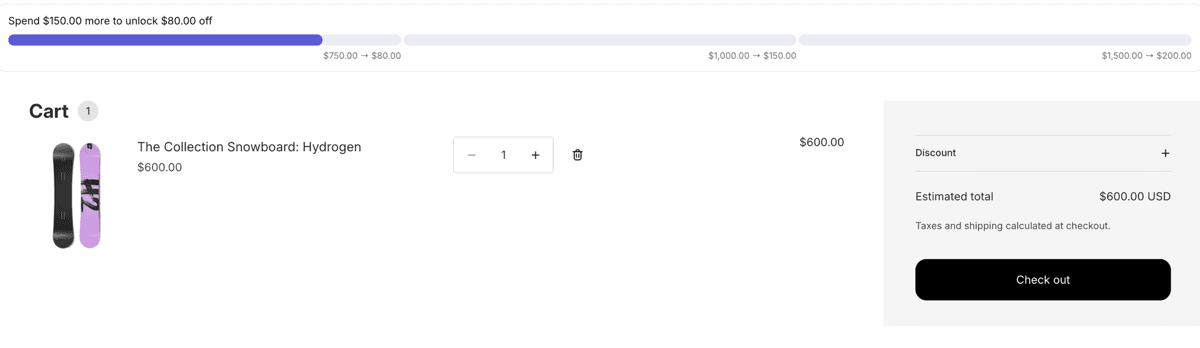
Four states, one bar
Progress toward the first rung, next rung once one is reached, all rungs reached, and the empty-cart teaser. Each state has its own message, in seven languages.
Never a false promise
A rung is only shown as unlocked once Shopify's cart confirms the discount is applied. If the two ever disagree, the bar hides itself rather than mislead.
- An automatic order discount in Pixoo with a minimum purchase amount, or with spend tiers per currency. A code discount, or a discount with a minimum quantity of items, cannot drive the bar. See the table below for the full rules.
- An Online Store 2.0 theme. Horizon, Dawn, and most Theme Store themes are detected, cart page and drawer included. For other themes, a CSS selector or the app block does the job.
- 1
Activate the Pixoo storefront app embed
In your Shopify admin, open Pixoo, then Storefront. The Progress bar tab opens first. Next to Cart & drawer (app embed), click Open theme editor: the editor opens on the app embeds panel. Toggle Pixoo storefront on and click Save in the editor.
Back in Pixoo, open your cart page once so the script runs, then click Check the status. The status reads "Active".
The same embed powers the discounted price on product pages. One activation covers both.
- 2
Enable the bar
In Show the progress bar on your storefront, switch on Enable progress bar. In Appearance, tick where it should appear: Cart page, Cart drawer, and Product pages (which needs the app block, see below). Click Save.
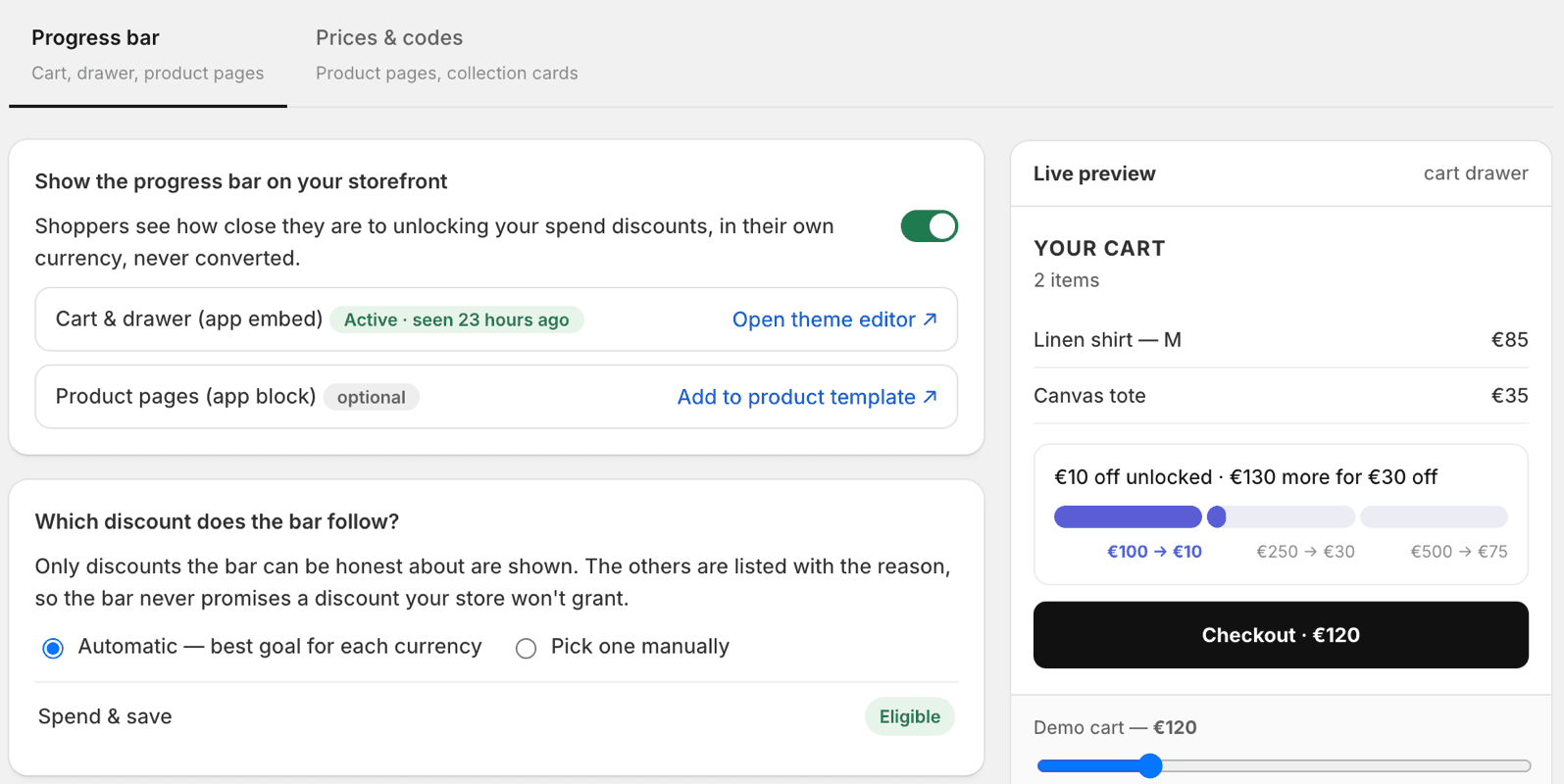
The Progress bar tab. Activation, discount choice, messages and appearance all live here, with a live preview on the right. - 3
Choose the discount the bar follows
In Which discount does the bar follow?, keep Automatic to let the bar pick, for each currency, the best eligible discount of your store. Choose Pick one manually to pin a specific discount: the bar then follows that one only, and hides itself if it stops being eligible rather than switching to another discount you did not choose.
Below the choice, every automatic order discount of your store is listed as eligible or excluded with the reason in plain words.
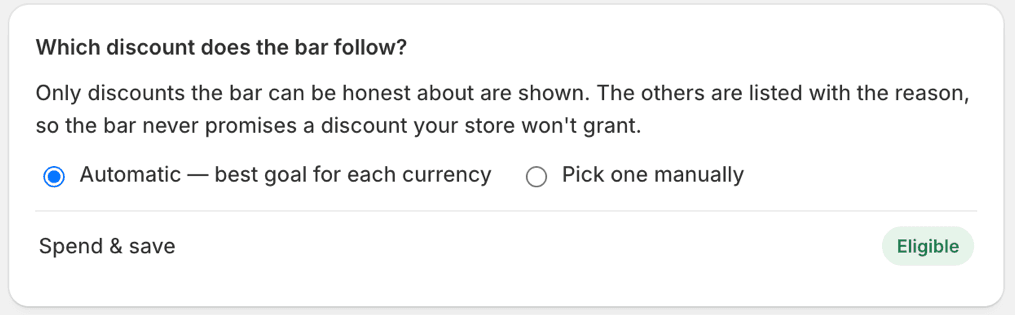
Automatic or pinned. An excluded discount would be listed here with its reason, so you can fix the discount rather than the bar. - 4
See it on your store
Open your store, add a product to the cart, and open the cart or the drawer. The bar shows the remaining amount, then updates as the cart changes. Cross the threshold: the bar says the discount is unlocked once the cart confirms it, and the cart total shows the discount.
A change made in Pixoo can take up to ten minutes to reach the storefront. Open a private window to see it right away.
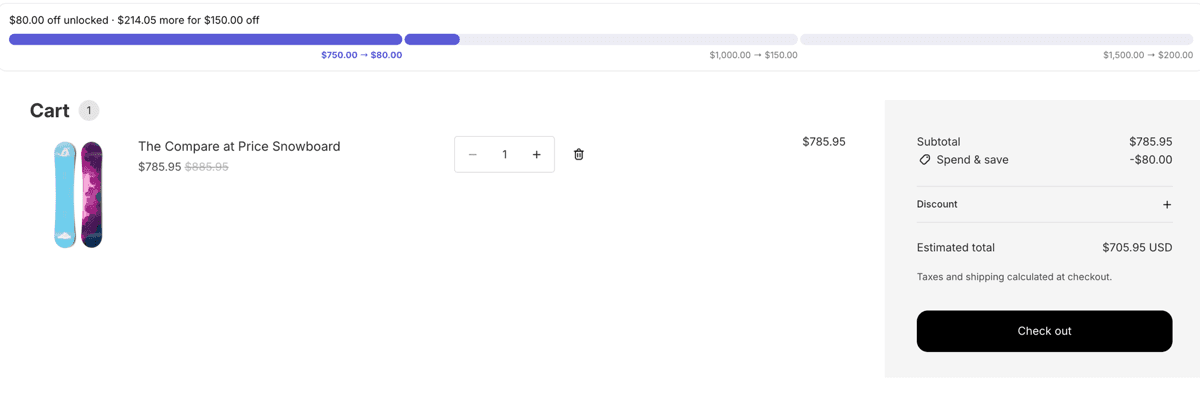
The first tier crossed. The bar says unlocked only because the cart totals below confirm the discount. 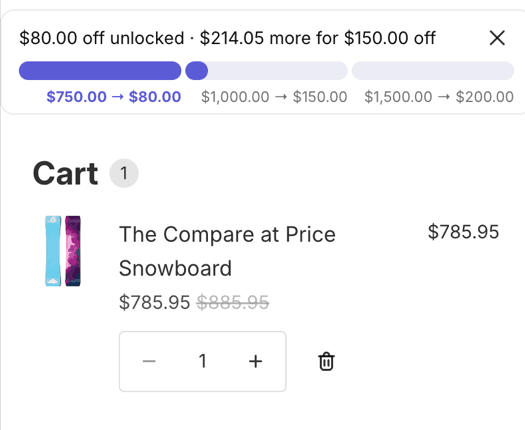
The same bar in the cart drawer, in its compact form.
In the Progress bar tab, click Add to product template. The theme editor opens on your product template with the Pixoo progress bar block added. Drag it where you want it, usually under the add-to-cart button, and save. On Horizon, the block lands at the end of the template; if the editor will not let you drag it into the group you want, delete it and add it from that group instead: open the group, Add block, Apps, Pixoo progress bar.
The block can also be used on the cart page of themes where the automatic placement does not find the cart: add it to the cart template the same way, and it takes priority over the automatic placement.
Cart drawers on custom themes
If the drawer shows no bar while the cart page does, your theme builds its drawer in a way Pixoo does not recognise. Paste the drawer's CSS selector in Advanced, Drawer CSS selector. Not sure what to paste? Send us the store URL and we will send back the selector.
Show the progress bar on your storefront
Enable progress bar
Switch · Default: off
The master switch. Off: no bar anywhere on your store, settings kept. On: the bar renders on the surfaces ticked in Appearance, for the discount chosen below.
Cart & drawer (app embed)
Status, with Open theme editor
A check, not a setting: whether the Pixoo storefront app embed is on in your live theme and whether the script ran recently ("Not activated yet", "Activated", "Active · seen 2 minutes ago"). Open theme editor opens the app embeds panel of your live theme. App embeds are per theme: a draft theme needs its own activation. The same embed powers the discounted price on product pages, so switching it off in the theme editor stops both.
Product pages (app block)
Link, Add to product template
Opens your product template in the theme editor with the Pixoo progress bar block added at the end. Drag it where you want it and save. Needed only for the product page: cart page and drawer are found automatically.
Which discount does the bar follow?
The bar follows one discount at a time per currency. This section decides which.
Automatic, best goal for each currency
Choice · Default: selected
For each currency, the bar follows the eligible discount with the best goal for the shopper. A discount you create later is picked up on its own if it qualifies. This is the right choice when you run one spend-threshold promotion at a time, which is most stores.
Pick one manually
Choice
Pins the bar to a single discount you select in the list below. The bar then never switches to another discount by itself. If the pinned discount stops being eligible (paused, expired, edited into a non-qualifying shape, deleted), the bar hides everywhere and the tab shows a warning, until you pick another one or go back to Automatic.
The discount list
Status per discount
Every automatic order discount of your store, eligible or excluded with the reason under its name. In manual mode, click a discount to pin it. The reasons are explained in "Which discounts qualify" below.
Messages
One message per state of the bar. The buttons above the fields pick the language you edit; a shopper reads the language of the storefront they browse. Empty means Pixoo's default in that language. The tokens in double braces are replaced on the page by real amounts, formatted in the shopper's currency the way your theme formats prices; each state only accepts the tokens listed under its field.
Progress
Text · Default: "Spend {{remaining}} more to unlock {{reward}}"
Shown while the cart is below the first rung.
{{remaining}}is what is left to spend,{{reward}}the discount of that first rung (for example "10% off" or "$10 off").Next rung
Text · Default: "{{reward}} unlocked · {{remaining}} more to get {{nextReward}}"
Shown with spend tiers, once a rung is reached and a higher one exists.
{{reward}}is the rung just unlocked,{{nextReward}}the next one,{{remaining}}what is left to reach it. With a single threshold this state never shows.Reached
Text · Default: "🎉 {{reward}} unlocked on your order"
Shown once every rung is unlocked and the cart confirms the discount.
{{reward}}is the highest rung.Teaser
Text · Default: "Get {{reward}} on orders over {{threshold}}"
Shown on an empty cart, and on product pages before anything is in the cart.
{{reward}}is the first rung's discount,{{threshold}}its amount. Leave it neutral: it is a promise about the rule, not about this cart.
Appearance
Colours, shape and surfaces. The font is always the theme's.
Fill
Colour · Default: #5b5bd6
The filled part of the bar, the progress made.
Track
Colour · Default: #ececf4
The empty part of the bar, what is left to reach.
Text
Colour · Default: #111111
The colour of the message above the bar.
Background
Colour · Default: #ffffff
The box behind the message and the bar. Set it to your cart's background to make the box invisible, or to a tint to make the bar stand out.
Bar height (px)
Slider, 6 to 24 · Default: 10
The thickness of the bar itself, not of the box.
Corner radius (px)
Slider, 0 to 24 · Default: 10
How rounded the ends of the bar are. 0 is square, a value equal to the height is a full pill.
Cart page
Checkbox · Default: on
Shows the bar at the top of the cart page.
Cart drawer
Checkbox · Default: on
Shows the bar inside the slide-out cart, on themes that have one. The bar is added when the drawer opens and follows every change made from the drawer.
Product pages (app block)
Checkbox · Default: on
Shows the bar on product pages, inside the Pixoo progress bar block you placed in the product template. Without the block, this checkbox has no effect.
Advanced
Two CSS selectors for themes Pixoo does not recognise. Empty means automatic detection, which covers Horizon, Dawn and most Theme Store themes.
Drawer CSS selector
Text · Default: empty
The container of your cart drawer, for example
#CartDrawer .drawer__inner. The bar is inserted at the top of it. A wrong selector means no bar, never a broken drawer.Cart page CSS selector
Text · Default: empty
The container of the cart page items, for example
#main-cart-items. The bar is inserted before it.
Preview, Save and Discard
Next to the settings, and in the bar at the top.
Preview
Live
Renders the four states with your messages and colours for the selected language, on sample amounts. It shows the layout, not your real discount.
Save / Discard
Bar at the top
Everything on the tab is saved together with Save; Discard drops unsaved changes. The storefront can take up to ten minutes to reflect a save.
| The discount | What happens |
|---|---|
| Automatic order discount with a minimum purchase amount | Followed. The bar shows how much is left before the discount applies, in the shopper’s currency. |
| Spend tiers per currency (up to five rungs) | Followed. The bar walks the shopper from one rung to the next, using the rungs you set for each currency. Rungs are never converted from another currency. |
| Discount limited to specific markets | Followed in those markets only. |
| Currency without a threshold, with conversion enabled on the discount | Followed for a single threshold, converted with the store rate and rounded so the bar never claims a rung before the checkout does. Spend tiers are not converted. |
| Discount code (not automatic) | Not followed. The bar cannot know whether the shopper will enter the code. Only automatic discounts qualify. |
| Minimum quantity of items instead of an amount | Not followed. A bar measured in money cannot represent a count of items. |
| No minimum purchase and no spend tier | Not followed. There is nothing to reach, so nothing to show. |
| Limited to customer tags, segments, guests only, or B2B companies | Not followed. The storefront cannot verify who the shopper is, so the bar does not guess. |
| Full-price items only | Not followed. The cart does not expose enough to compute the eligible subtotal without over-promising. |
| Scheduled, expired, or ending in the next few minutes | Followed only while active, hidden a few minutes before the end date so a cached page never promises an expired discount. |
- The cart has the last word. The remaining amount is computed on the page from the cart's contents. "Unlocked" is only shown once Shopify's cart reports the discount as applied, which is the same verdict the checkout gives.
- A disagreement hides the bar. If the page believes a rung is crossed but the cart does not confirm it twice in a row, the bar hides for the rest of the session and Pixoo records the event. This is rare, and it always errs on the side of showing nothing.
- Rungs are never converted. A spend tier applies in the currency you set it for. Only a single threshold can be converted for currencies you left unset, and the conversion is rounded so the bar never claims a rung before the checkout does.
- A minimum purchase clamps the rungs. When a discount has both a minimum purchase and spend tiers below it, the bar shows the minimum as the first step to reach, exactly like the checkout.
Traps we hit while testing
We tested the bar on two themes, with single thresholds and spend tiers in several currencies. These are the moments where we thought something was broken and it was not.
- The bar vanished right after I edited my discount
- We hit this ourselves. The storefront still had the previous version of the discount for up to five minutes; the page computed "rung crossed" from the old rule, the cart did not confirm it, and after two disagreements the bar hid itself for the session. Open a new tab, or wait ten minutes. This protection is what keeps the bar from promising a discount the checkout would not give.
- I set spend tiers in euros and the bar shows nothing in euros
- The discount also had a minimum purchase amount, but only in another currency. When a currency has tiers and no minimum of its own, the real floor depends on a conversion only the checkout knows, so the bar declines. Set the minimum purchase in every currency that has tiers, or remove the minimum.
- I created a discount and it is not in the list
- Pixoo re-reads your discounts at most once every ten minutes, so a discount created a moment ago can be missing from the list until the next refresh. Reload the tab after ten minutes; it will be there, eligible or excluded with its reason.
- My discount code with a minimum spend is excluded
- The bar only follows automatic discounts. A code discount depends on the shopper entering the code, so the bar cannot know whether the reward will apply. Recreate it as an automatic discount if you want the bar.
- A "buy 3 items, get 10% off" discount is excluded
- Its threshold is a number of items, and a bar measured in money cannot represent it honestly. Only minimum purchase amounts and spend tiers drive the bar.
- The empty cart shows a message on Horizon but not on my theme
- On an empty cart the bar shows the teaser, which needs a cart container to sit in. Horizon and Dawn keep one on the empty cart; some themes render a different page with nothing to attach to, so the teaser appears once the first item is added. Add the cart page CSS selector in Advanced if your empty cart has a container you want the teaser in.
- I switched the embed off to test something, and the product page prices went too
- The Pixoo storefront embed powers both the bar and the discounted price on product pages. Switch it back on in the theme editor; both come back.
- The block was added at the bottom of the product template and I cannot move it into the group I want
- The theme editor adds an app block at the end of the template and, on Horizon, will not let you drag it into a group. Delete it, open the group (under the add-to-cart button, for example), click Add block, Apps, Pixoo progress bar. Inside the group you can drag it freely.
- The bar shows in one market and not another
- The discount is limited to specific markets, or the shopper's currency has no threshold and conversion is off on the discount. Both are respected exactly: the bar shows where the discount applies, nowhere else.
When something does not show
- The bar does not show at all
- Check, in this order: the app embed status reads "Active" in Pixoo; Enable progress bar is on and saved; the surface you are looking at (cart page, drawer) is ticked in Appearance; at least one discount is listed as eligible, or the pinned one still is. Then wait ten minutes or open a private window.
- My discount is excluded
- The three most common reasons: it is a code discount (only automatic discounts qualify), its threshold is a quantity of items rather than an amount, or it is set to full-price items only. Editing the discount makes it eligible the next time the list is refreshed.
- It shows on the cart page but not in the drawer
- Your theme's drawer is not recognised. Add its CSS selector in Advanced, Drawer CSS selector, or send us the store URL.
- It shows in the cart but not on the product page
- The product page needs the Pixoo progress bar block in the product template, and the Product pages checkbox ticked in Appearance. See "On the product page" above.
- The amount is wrong in one currency
- Open the discount in Pixoo and check the threshold or the tiers for that currency. If the currency has no threshold set, the bar only follows a converted single threshold when conversion is enabled on the discount, and never converts spend tiers.
Still stuck? Email support@pixoo.app with your store domain and, if you have one, a screenshot of the diagnostic panel. We will look at it directly.
Related reading: showing the discounted price on product pages and why a cart progress bar works for tiered discounts.