How to Connect Pixoo to Klaviyo: Sync Your Discount Events

Pixoo
Multi-currency discounts for Shopify
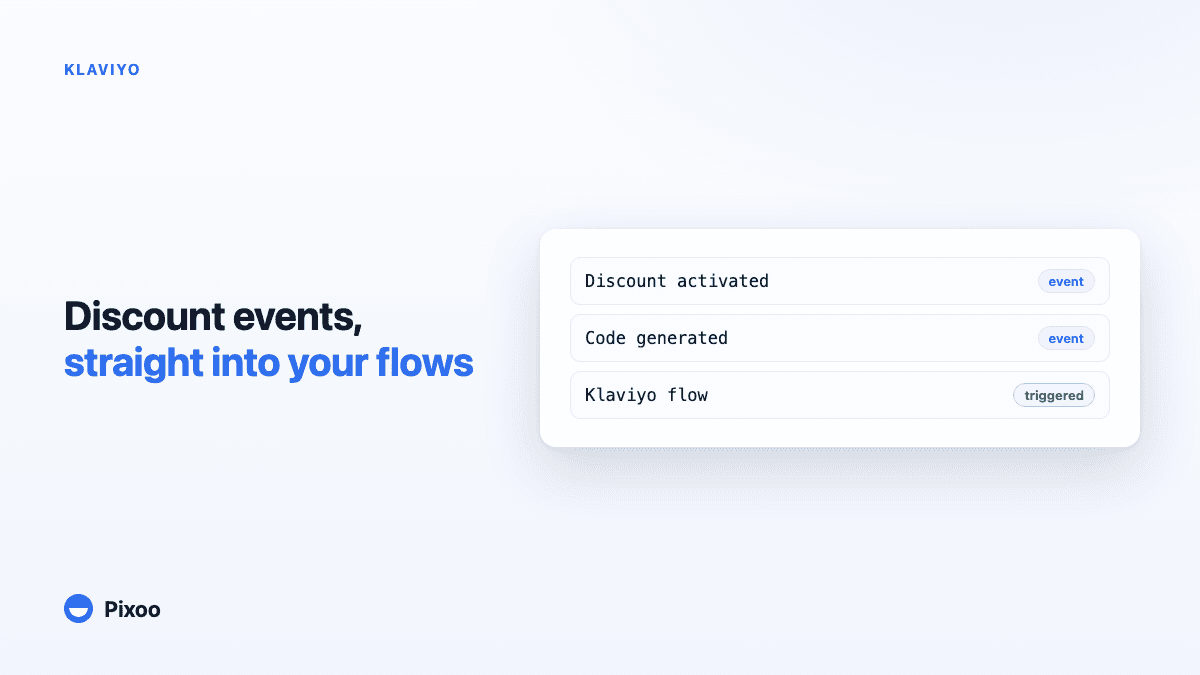
How to Connect Pixoo to Klaviyo: Sync Your Discount Events
Key takeaways
- Connect your Klaviyo account to Pixoo in a couple of clicks, with no API keys to copy and no code
- Pixoo sends three discount events to Klaviyo: discount activated, codes generated, and code redeemed
- Each event carries the per-currency discount value and attaches to the shopper's Klaviyo profile
- Use these events to build segments and trigger email/SMS flows from real discount activity
- The integration is optional and granular: turn each event on or off, and disconnect at any time
In this guide:
- What the Klaviyo integration does
- Before you start
- Connecting Pixoo to Klaviyo
- Choosing which events to sync
- The three discount events explained
- Using your events in segments and flows
- Your data and privacy
- Troubleshooting
If you run an international Shopify store with Pixoo Multi-Currency Discounts, your discounts already adapt to each market with currency-specific amounts. The Klaviyo integration takes the next step: it sends what happens with those discounts straight into Klaviyo, so you can act on it with the email and SMS flows you already run there.
This guide walks you through connecting the two, choosing what to sync, and putting your discount events to work. It takes a few minutes and requires no technical setup.
What the Klaviyo integration does
Once connected, Pixoo automatically sends discount-related events to your Klaviyo account. Whenever a multi-currency discount is activated, a batch of codes is generated, or a shopper redeems a code at checkout, Klaviyo receives an event carrying the discount value in the currency the shopper actually paid in, not just your store's base currency.
For redemptions, the event is attached to the shopper's Klaviyo profile, so it sits alongside everything else you know about that customer and becomes available for segmentation and personalisation.
The result: your discount strategy and your marketing automation finally speak to each other. If you've ever struggled to align promotions with messaging across markets, our guide on why international email marketing fails and how to fix it pairs well with this setup.
Before you start
You'll need:
- Pixoo installed on your Shopify store. New here? Install Pixoo Multi-Currency Discounts first.
- A Klaviyo account with permission to authorise integrations. The free Klaviyo plan works fine to get started.
That's it. You don't need to copy any API keys or private tokens. The connection uses a secure authorisation flow that you approve directly in Klaviyo.
Connecting Pixoo to Klaviyo
- Open the Pixoo app in your Shopify admin.
- Go to the Klaviyo page in the app's navigation.
- Click Connect Klaviyo.
- You'll be taken to Klaviyo to review and approve the connection. Pixoo requests only the access it needs: to read your account name, to send events, and to write to customer profiles.
- Approve the request. Klaviyo sends you back to Pixoo, and the page now shows your connected account name and the date you connected.
You're connected. From this point, Pixoo will start sending the events you've enabled (see the next section).
Note: While the integration is brand new, Klaviyo may show a notice that the app hasn't yet been reviewed by Klaviyo. This is expected for recently launched integrations and doesn't affect how the connection works, and your data flows normally.
Choosing which events to sync
The integration is fully opt-in and granular. On the Pixoo Klaviyo page, each event has its own on/off toggle, so you decide exactly what reaches Klaviyo. Turn everything on, or pick only the events you plan to use in your flows. You can change these toggles at any time, and you can disconnect Klaviyo entirely with a single click.
The three discount events explained
1. Multi-Currency Discount Activated Fires when you activate a discount configured with values in more than one currency. The event lists the currencies covered and the discount value for each, which is useful for tracking the markets you are actively promoting to.
2. Discount Code Generated Fires when a batch of discount codes is generated, with the number of codes created. Handy for internal alerts when a campaign's codes are ready.
Note that this event carries a count, not a code, so a Klaviyo flow cannot pull an individual code out of it. To send one unique code per customer inside a Klaviyo email, use Shopify Flow instead: the full walkthrough is in the Klaviyo integration documentation.
3. Discount Code Redeemed The richest event: it fires when a shopper pays for an order using a Pixoo code. It's attached to the shopper's Klaviyo profile and includes the code used, the discount value in the currency they paid, the order value, and the order number. Pixoo also enriches the profile with the shopper's preferred currency, their last code used and its value, and the date of the last redemption.
Using your events in segments and flows
This is where the integration pays off. A few examples of what becomes possible in Klaviyo:
- Recover unused codes. Segment shoppers who received a code but haven't redeemed it, and trigger a reminder email or SMS before it expires.
- Thank and re-engage. Build a flow that thanks customers right after they redeem a Pixoo code, then nudges them toward a repeat purchase.
- Segment by market and currency. Use the preferred-currency property to tailor messaging, language, and offers per region, the same currency-specific thinking behind our complete guide to multi-currency discounts.
- Personalise with real numbers. Reference the actual discount value a shopper received, in their own currency, instead of a generic figure.
Because the redemption value is reported in the shopper's payment currency, your flows stay accurate for every market, with no awkward converted amounts.
Your data and privacy
A few important points:
- Events are sent only to your own connected Klaviyo account, never anywhere else.
- The connection is secured by an authorisation flow you approve in Klaviyo; access tokens are stored encrypted and are never exposed.
- You stay in control: toggle individual events off, or disconnect Klaviyo at any time, which revokes Pixoo's access.
- If you don't connect Klaviyo, nothing changes in how you use Pixoo today. The integration is entirely optional.
Troubleshooting
The connection shows as expired or disconnected. Reconnect from the Pixoo Klaviyo page. This can happen if access was revoked on the Klaviyo side or after a long period of inactivity.
A redemption didn't appear on a customer's profile in Klaviyo. Redemption events attach to a profile using the shopper's email (or phone, as a fallback). Guest checkouts without either won't create a profile. Make sure the order captured a customer identifier.
An event type isn't coming through. Check that its toggle is enabled on the Pixoo Klaviyo page, and that the connection still shows as active.
Ready to align your promotions with your marketing? Install Pixoo Multi-Currency Discounts, open the Klaviyo page, and connect in a couple of clicks.
Recommended Articles
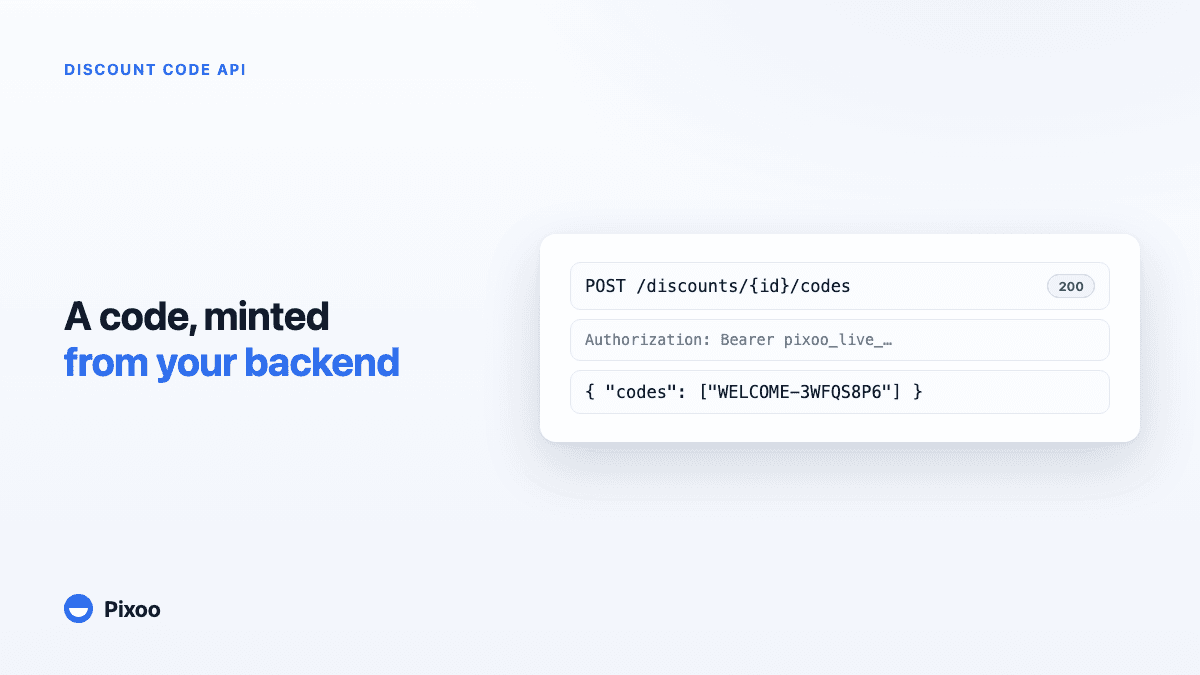
The Shopify Discount Code API: Generate, Track and Recycle Codes From Your Own Stack
When a code has to be issued the moment something happens in your own software, a CSV is useless. Mint unique codes on demand, react to redemptions in real time, and recycle used ones so a rotating campaign never hits the ceiling.
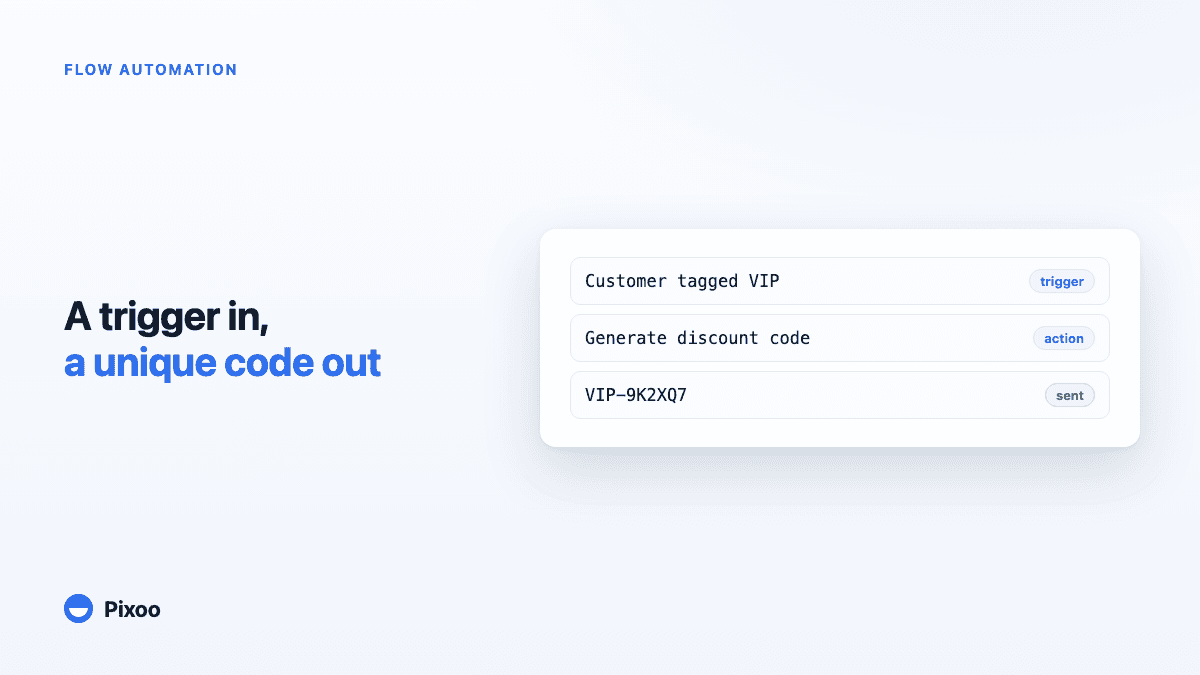
Shopify Flow Discount Automation: Unique Codes on Autopilot and 12 Workflows Worth Copying
Shopify Flow can now react to your Pixoo promotions — and generate one-off, multi-currency discount codes from any event in your store. Here is how the integration works, what data it exposes, and 12 ready-to-build workflows: VIP rewards, win-backs, review thank-yous, and more.